 Satori
 Manual
How to install, open your first chat and use every screen of the app: chat, permissions, workflows, orchestration, Git, skills, MCP and shortcuts.
Before you start
Satori doesn't replace your AI CLIs: it runs them. Each conversation is driven by the Claude Code, Codex, OpenCode or Antigravity installed on your machine, with the account you already use in them. Satori adds the interface.
Requirements
| What | Detail |
|---|---|
| System | Windows x64. macOS and Linux don't have an installer yet |
| Node, npm, SDK | not needed: the installer brings what the app uses |
| At least one CLI | Claude Code, Codex, OpenCode or Antigravity, installed and logged in |
Satori works with four CLIs:
| CLI | How to install (in the terminal) | Login |
|---|---|---|
| Claude Code | irm https://claude.ai/install.ps1 | iex |
/login inside claude |
| Codex | npm i -g @openai/codex |
codex login |
| OpenCode | npm i -g opencode-ai |
opencode auth login |
| Antigravity | from Satori itself, on First run | Google account, in Settings › CLIs & Providers |
Use Claude Code's native installer (the line above), not the npm package: the Claude chat depends on that installation. Codex, OpenCode and Antigravity are optional; the ones that are installed show up on their own.
Gemini CLI isn't supported: its free tier was discontinued and it doesn't even authenticate.
Install
- Download the installer for the latest version: download the installer.
- Run the installer and open Satori from the Start menu.
There's nothing else to install. New versions arrive through the app itself (see Updates).
First launch
Satori looks for the CLIs on the PATH and for the accounts in your user's
profile folders. Until a CLI is ready, the Chat shows the wizard described
in First run, which installs whatever is missing and
connects the account.
Profiles: one account per folder
A profile is a separate account of a CLI, kept in its own folder. The
.claude*, .codex*, .opencode* and .gemini* (Antigravity) folders in your user folder that have already been used
show up on their own in Settings › Profiles. There you can also:
- create a new profile: choose the CLI, give it a name (e.g.
trabalho) and click Create and sign in; the login opens right after; - add a profile from somewhere else, by pasting the folder path;
- hide a profile from the list, without deleting anything from disk.
Login for Codex, OpenCode and Antigravity can also be done in Settings › CLIs & Providers, with the Log in… button (or Switch account…, when there's already an account). On the same tab, Browse… points to a CLI's executable that detection couldn't find.
The first chat
- Ctrl+N (or the sidebar's
+) opens a new chat. - In the chips of the message box and of the line right below it, choose who to talk to (a Claude Code profile, Codex, OpenCode or Antigravity), the project folder, the model and the mode.
- Type and press Enter.
Profile and folder freeze after the first message; model and mode can change at any time. The details are in The composer bar.
First run
Satori talks to the AI CLIs installed on your machine: Claude Code, Codex, OpenCode and Antigravity. One of them is enough, installed and with an account connected. The first time the app opens, a tour covers the window and takes you to the first chat:
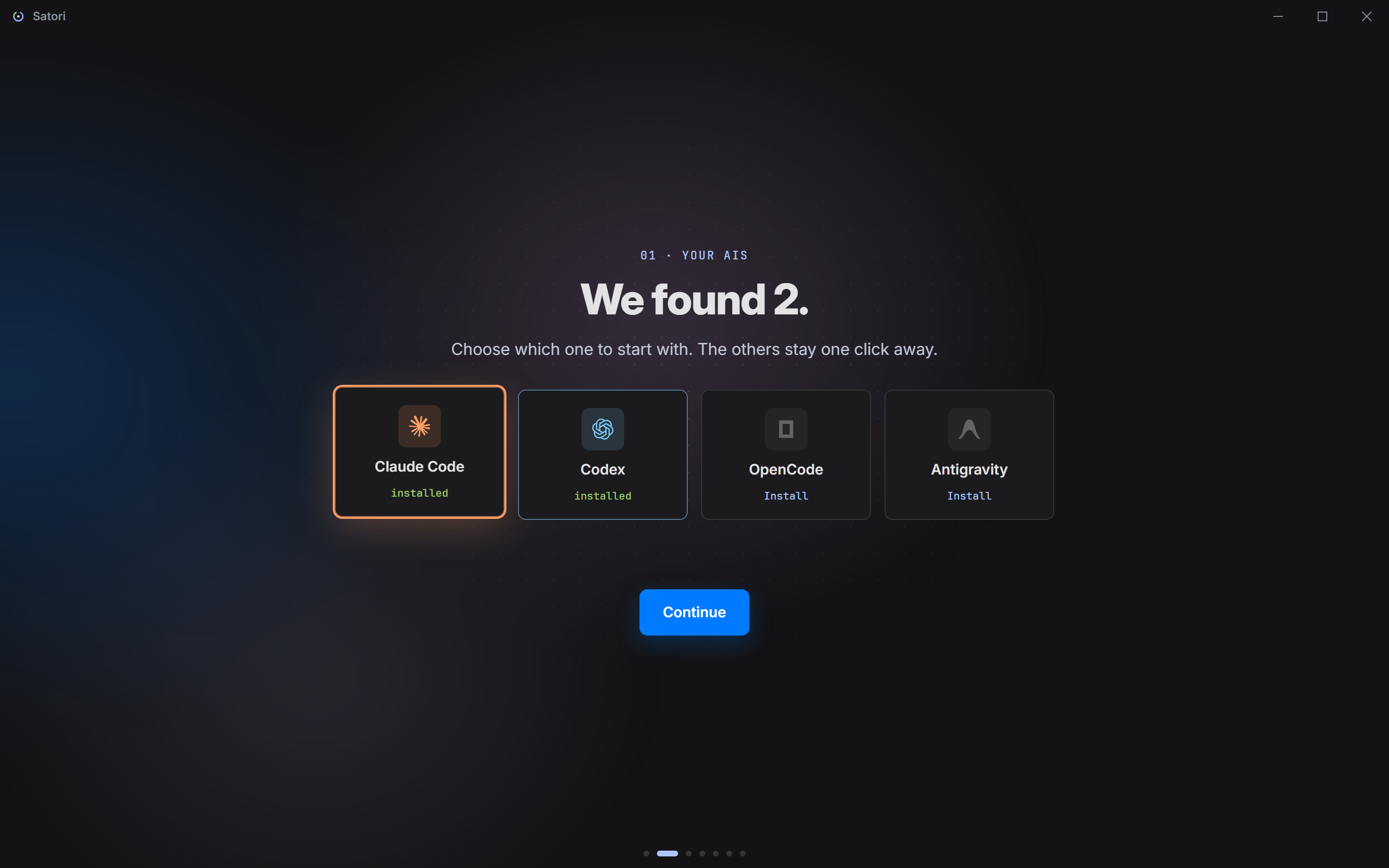
- Opening. The language is at the bottom (PT · EN · ES); switching restarts the app right away, already in the chosen language.
- 01 · Your AIs. One card per CLI, with what is already on the machine.
Clicking a missing CLI runs its official installer in the background, with
the progress on screen, no terminal and no editing the
PATHby hand. If you prefer the terminal, open I'd rather install from the terminal, copy the line and click I've installed it — check; if the installer warns that the folder isn't on thePATH, Point to executable… solves it. - 02 · Account. Sign in with the browser opens the CLI login on this machine's default account, the same one it uses in the terminal. If the page shows a code, paste it into the card itself. With more than one folder for the CLI, the list shows each one's account; Use a separate profile creates another. The step only continues with the account confirmed, and shows its e-mail.
- 03 · Project. The folder where the agent will work (with the branch, if it's a git repository).
- 04 · Appearance. Theme and text size, applied right away.
- 05 · Tricks. Workflows, Orchestration, Kanban and Memory, each with two demo screens; nothing actually runs.
- 06 · First chat. What you write goes to the real chat, and only goes out with your Enter. Not now, just open Satori closes without sending anything.
Skip the tour appears from step 03 on. To see the tricks again: Settings › About › Replay the tour. If later no CLI is ready (uninstalled, account removed), the tour comes back straight at Your AIs and leaves as soon as an account is connected. If an account's session drops ("OAuth session expired"), the error itself, in the chat or in the Orchestration column, offers Log in again.
The app opens without a project if you didn't choose a folder in step 03. On the first message of a chat with no folder, Satori asks you to choose where the agent will work; canceling leaves the message in the field. The agent never runs in a place nobody chose. To avoid being asked every time, set the Working folder in the new chat defaults, in Settings › General.
The window
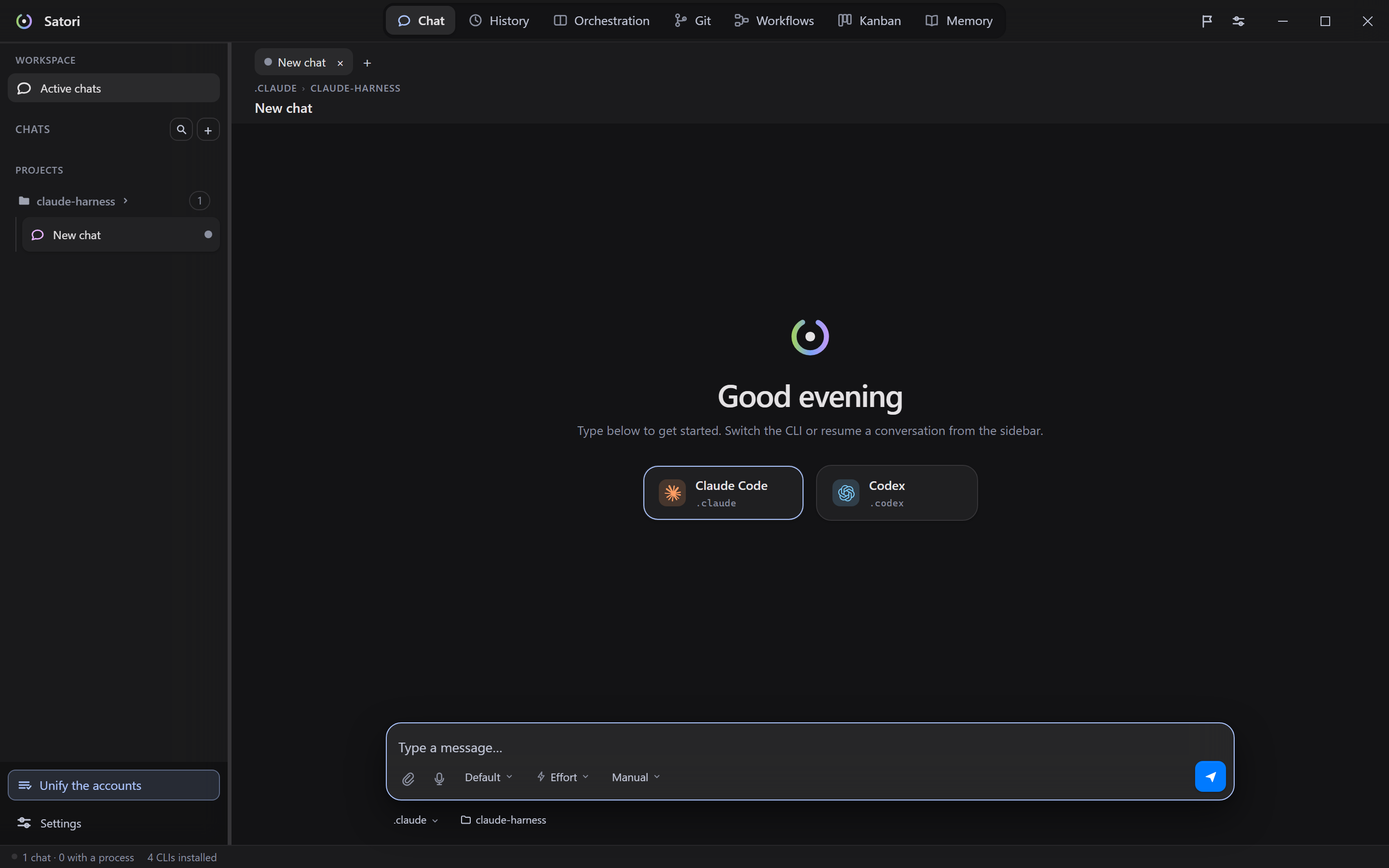
Navigation is the top bar, with the seven destinations in the middle (Chat, History, Orchestration, Git, Workflows, Kanban and Memory), the Report a problem flag and the Settings gear on the right, and the window controls at the edge. The sidebar is contextual: it exists in Chat and Orchestration, where it governs what's on screen, and disappears everywhere else. At its bottom there is a second door to Settings, with the name written out; the light/dark theme is chosen there, under General › Appearance.
When no conversation is open, this screen appears: the greeting comes from the machine's clock and there is one card per installed CLI. Clicking one picks the CLI and the account for the chat you're about to start. Each card carries the CLI's logo in the color that identifies it throughout the app. If the chat doesn't have a folder yet, No folder chosen · Choose folder appears below the cards, which opens the same dialog as the folder chip; once a folder is chosen this line goes away, and the chip below the field keeps telling you which one it is.
Sidebar. Drag the right edge to resize it (180–460 px). Double-click the divider to go back to the default. Ctrl+B collapses it into an icon-only strip; the name appears on hover. Width and collapsed state stay as they were when you reopen the app.
Chats grouped by project. Each group carries the name of the folder that chat works in and the number of conversations in it. Within a group, the newest chat is on top. Click the header to collapse or expand it; what you left closed stays closed the next time.
Right-click a chat in the list to open its menu: Rename (the name is edited right there, in any chat), the Team roles to give the chat one (see Team) and, with memory turned on, Save to memory now (see Memory).
The open chat stays visible even when its group is collapsed. The full folder path appears when you hover over the project name.
+ on the group (appears on hover) opens a chat already in that folder.
It's the only way for a new chat to start in a project: the general + and Ctrl+N
use the default folder from Settings, never the one of the chat in front. The group's ⋯
has New chat here and Worktrees… written out.
Active. Every chat with a running CLI process (working, waiting for you or just idle after answering) moves up to an Active group at the top, which doesn't collapse. That way the chat that needs you doesn't disappear along with a collapsed project. Inside Active, chats are separated by their own project, with the folder name above them. When you close it, it goes back to the project group.
Pin. The pin on the item moves the chat to a Pinned group at the top, with the folder name as a second line, since chats there come from different projects. Click again to unpin. What is pinned stays pinned when you reopen the app.
Filter. The magnifier next to the + opens a field that filters by chat name or
folder. While the filter is active every group stays open. Esc
closes and clears it; closing through the magnifier also clears it.
Colored dot next to each chat:
| Color | Meaning |
|---|---|
| Gray | no process: restored or just opened, hasn't spoken yet |
| Green | process running and ready |
| Blinking blue | working |
| Amber | stopped, waiting for you (permission or question) |
| Red | the last turn failed |
The red mark goes away when you send the next message in that chat.
Status badge, to the right of the name, when there's something you need to know without opening the chat:
| Badge | Meaning |
|---|---|
| you | the chat is stopped, waiting for you to answer a permission or a question |
| 429 | that account's usage limit was reached; wait, or continue on another account (see Accounts and rotation) |
| queue N | N of your messages waiting their turn in that chat |
Only one shows at a time, in this order of priority: what depends on you comes before what depends on waiting.
Chat
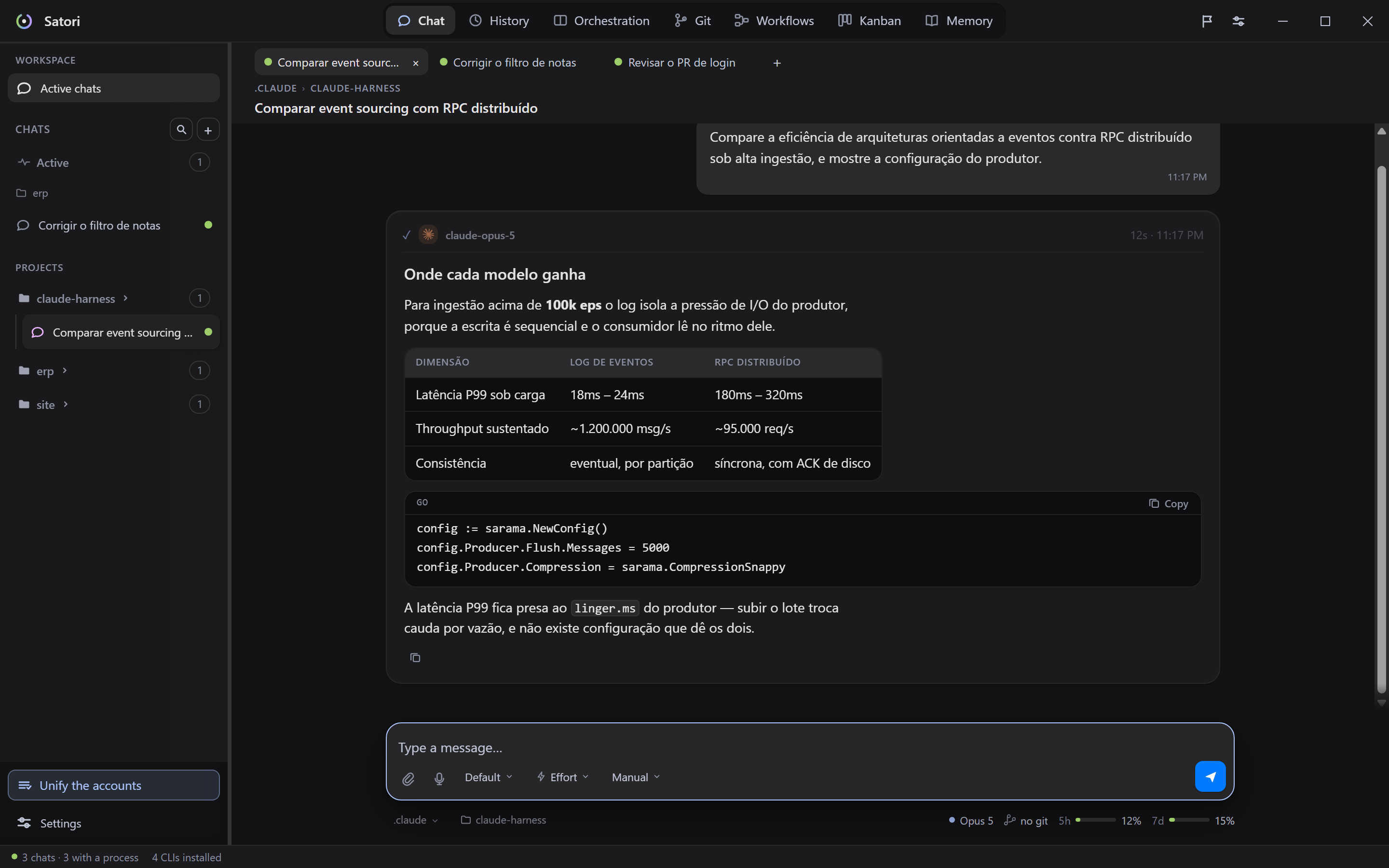
Type and press Enter (Shift+Enter breaks the line). The answer appears as it arrives.
The whole answer becomes one card per turn, with a strip at the top saying which CLI answered, with which model and, when the turn closes, how long it took. Model, effort and mode sit inside the message box, next to the paperclip; account and folder sit on the line right below it. With the Bypass permissions mode, the mode chip turns red for as long as it applies.
Tabs. Above the title sit the tabs of the chats with the CLI running, plus the one in front. Click to switch conversation without going to the sidebar; the × and the middle mouse button close the chat, the + after the last one opens a new chat, and Ctrl+PageUp/Ctrl+PageDown move between them. Each tab's dot has the same colours as the list.
Attachments and commands
Attachments. Paste (Ctrl+V), drag from the file explorer onto the conversation or use
the paperclip. A dragged folder is not attached: its path goes into the field. Images get a
thumbnail; everything else becomes a tag with the extension. Any format works, up to
30 MB per file: PDF, Office, text, code and archives the agent opens or
extracts; the others (audio, video, drawings…) it identifies from the terminal and
tells you what it can do. Only executables (.exe, .msi, .dll…) and
Windows shortcuts (.lnk, .url) are rejected, with the reason written in the
conversation.
Images go to the CLI as images; the rest go as file paths, and the agent's own tool opens them, which is why it works in every CLI. In Antigravity, binaries that aren't images (PDF, Office, archives) are left out, and the chat tells you. An attachment belongs to the chat it was pasted into: switching conversations doesn't take it along, and what you were typing is also kept per chat.
/ commands. Typing / at the start of the message opens the list of that
profile's commands and skills: each key filters, ↑↓ move, Enter or Tab
choose, Esc closes without touching the text. The list comes from the CLI itself, and the CLI
is what expands the command. It exists in Claude Code, OpenCode and Antigravity (which
has /plan and /logout); Codex doesn't have this concept. The first time, the list takes a second to arrive.
Files with @. Typing @ at the start of a word opens the list of
files and folders in the chat's project: @ alone shows the first level, and
each letter filters by name (@cmp finds ui/compositor.js). Enter chooses
and writes @path in the field, in quotes when the path has a space; Tab
on a folder enters it; Esc closes. Choosing an image attaches it instead of
writing the path. An email like someone@company.com opens nothing, because
there the @ is in the middle of the word. It works in all four CLIs: in Claude Code the
file's content goes along with the message, and in the others the agent reads the
file from the path. Files ignored by .gitignore don't appear.
Tools and subagents
The tools the agent uses in sequence are grouped into a closed block, so the conversation doesn't turn into a wall of lines:
▸ 3 actions Write ×3 ← click to open
When open, each tool is one line:
▾ 4 actions  Read ×3, Bash
    ◜ Bash    npm test              ← running
    ✓ Read    calculadora.js        ← done, click opens the output
    ✕ Read    naoexiste.txt         ← failed, output already open
    – Edit    arquivo.js            ← got no result by the end of the turn
Click the line to see what the tool returned.
A failure opens the group on its own and turns the header red: a closed block can't hide an error.
Agent text or a file card in the middle closes the group: the following tools start a new block, in the order they happened.
A subagent has its own card. When the agent opens a Task, everything the
subagent does (what it writes and the tools it uses) stays inside
that line, with the action count in the corner (6 actions). The card sits loose
in the flow, framed, and starts closed; an error inside opens it on its own.
▸ 3 actions  Read ×2, Grep

┌ ▸ Task   review the diff          6 actions ┐

agent: I found three problems…
Claude sees your Chrome. In a Claude Code chat, with the
Claude in Chrome extension installed and paired, the agent uses the browser you already
have open, with your logins, just like /chrome in the terminal. Each of its clicks
goes through the usual permission request. Codex and OpenCode have no
equivalent.
How long each turn takes
While the turn runs, a working… strip sits at the bottom of the conversation, with the time running beside it and how many of your messages are still queued. It appears the moment you send, before any piece of the answer arrives:
⟳ working… 1m 12s
When the turn ends, the strip goes away and the total moves to the header of the
answer card (2m 59s · 11:23), as a record of how long that turn took. The
clock resets with each message you send, including when you queue several.
Renaming and editing
Renaming the chat. Double-click the title at the top of the conversation, or right-click the chat in the sidebar list and choose Rename: then the field opens right on the row, and it works for any chat, not just the open one. Enter saves, Esc cancels, clicking outside saves. An empty name keeps the previous one.
The automatic title is the first sentence you wrote. Once you rename it by hand, Satori no longer overwrites that name, and it survives reopening the app.
Editing the last message. Hover over your last message and use the pencil: the turn it produced is discarded and the corrected text goes in its place, in Claude Code, Codex and OpenCode. Antigravity doesn't have it: its server doesn't support it. Enter saves, Esc cancels.
Only the conversation goes back; the disk stays as it is. What the agent already wrote to files is still there; the Git panel is what undoes that.
The pencil only appears when the CLI has a point to go back to: in a conversation resumed from History it shows up after the first new turn.
When the agent asks
When it needs a decision from you, a panel slides up above the message field with the options, and the conversation stays visible behind it.
No option comes preselected. Each one's description fits on one line; the full text appears on hover. Clicking the selected option again deselects it. When the agent accepts more than one choice, the note "you can pick more than one" appears under the question and each option gets a checkbox.
None of the options fit? Every question has Other…, which opens a field for you to write the answer in your own words.
The question doesn't expire. The turn stays stopped until you answer. Skip (or Esc) moves on without answering, and the agent knows there was no answer. (The permission request is the opposite: it has a deadline, and with no answer the action is denied.)
A request from another chat doesn't switch screens. If a chat that isn't in front asks for permission or asks a question, a strip appears above the message field with Open. The conversation you're typing in stays where it is, and the permission's 120 s deadline only starts counting when you open the request.
Background commands
The agent can leave something running after it answers: a server, a build, a long test. Each chat has its own CLI process, which lives as long as the chat is open, just like in the terminal. Closing the chat ends that process. The status bar at the bottom of the window says how many are running (each takes about 150–250 MB).
In a Claude Code chat, what was left running shows up in a strip at the end of the conversation, with a stop button per item. The strip goes away on its own when the list empties. In Codex and OpenCode the process lives just the same, but without that list.
Closing Satori ends all of this. If a chat is in progress or a command is running in the background, Satori tells you what goes down with it and asks for confirmation; with nothing running, it closes right away.
Your profile's hooks
If you have hooks in Claude Code's settings.json, they apply in Satori's
chat the same way they do in the terminal. Satori only speaks up when a
hook rejects an action or fails:
a profile hook rejected PreToolUse:Write — don't write to .env
In a Codex or OpenCode chat the reach is smaller, and the chat tells you at the start what doesn't apply, before you rely on a guard that won't run.
The composer bar
The conversation chips live at two heights, close to the text field:
┌ text field ─────────────────────────────────────────────────┐
│ 📎  Opus 5 ▾  ⚡ High ▾  Manual ▾                         ➤ │   ← what applies to the turn
└─────────────────────────────────────────────────────────────┘
 .claude-work ▾  🗀 folder  ▦ Doing    ⑂ branch  ctx ▰▰▱ 38%  5h ▰▰ 27%  7d ▰ 25%
                                          ↑ where the conversation happens, and the status line
Inside the box are model, effort and mode, what you change from one turn to the next. On the line below are account, folder and the Kanban card the chat came from (when it came from one), followed by the status line. The button on the right is the send plane; during a turn with an empty field, it becomes the stop square.
Profile
The CLI account the chat uses: for Claude, which configuration directory
(.claude, .claude-work…); for Codex and OpenCode, their profile (see
Who the chat talks to). It freezes after the first message,
because the conversation is saved in that profile. For another one, open a new chat.
The menu and the start screen only offer the AIs that have an account on this machine: if you only use Codex, Claude doesn't show up, and a new chat starts in an AI with an account.
In Accounts mode (see Accounts and rotation) the chip shows only the AI: the account comes from the rotation order on the first send, and shows in the chip's tooltip and in the status line's account widget.
Project folder
Where the agent works. Clicking opens a menu: Choose folder… uses the Windows picker, and below it come the folders Codex and Claude have already worked in on this machine, most recent first. Coming from one of those CLIs, you don't need to pick your projects again. It shows only the folder name; the full path is on hover. It freezes after the first message. With no folder, the chip says Choose folder… and the first send asks for one.
Model
The list comes from the CLI itself, the same one its /model shows: Satori doesn't
keep its own table, so a new model on your account shows up on its own. Default
lets the CLI decide; the status line shows which one was actually used. You can change it at
any time: it applies from the next message.
In OpenCode, models come with the provider in front (anthropic/…,
openai/…), because it talks to several. If the CLI doesn't answer (not logged in,
old version), the menu shows the last list it gave.
Models with a larger context window (like Claude's "1M" variants) are
separate options in the list. The ctx bar shows the window size the CLI
reported for the model in use.
Effort
How much the model reasons before answering — what Claude Code calls effort, Codex reasoning effort and OpenCode variant. More effort usually gives more careful answers, and slower, more expensive ones.
The levels belong to the chosen model, and come from the CLI itself: in Claude they go from Low to Max, some Codex models have Ultra, and in OpenCode each provider has its own. With the model on "Default" the chip shows the levels of the account's default model. When the model has no effort (Haiku, for example), the chip disappears.
Like the model, you can change it at any time and it applies from the next message. Switching to a model that doesn't accept the chosen level makes the chat use that model's default; going back to the previous model brings your choice back.
Effort also exists in the Orchestration columns (next to each CLI's model), in the Team role, and as a new chat default in Settings › General.
Mode
In Claude Code, the mode defines how the agent behaves when an operation would change something:
| Mode | Behavior | Shortcut |
|---|---|---|
| Manual | Always asks before changing anything | 1 |
| Accept edits | Accepts file edits automatically | 2 |
| Plan | Makes a plan before changing anything | 3 |
| Bypass permissions | Accepts everything, no modal (the CLI's --dangerously-skip-permissions) |
4 |
With the menu open, keys 1–4 pick directly. The default is Manual.
"Bypass permissions" turns the permission request off completely. No modal appears and the agent runs everything without asking. The chip stays red while it's on; that's the only warning, and it goes away when you switch back to another mode.
In Codex and OpenCode the same chip picks the chat's policy, which applies to the whole conversation (see Who the chat talks to). In Antigravity it picks the mode: Ask, Edit without asking or Approve all.
Dictation
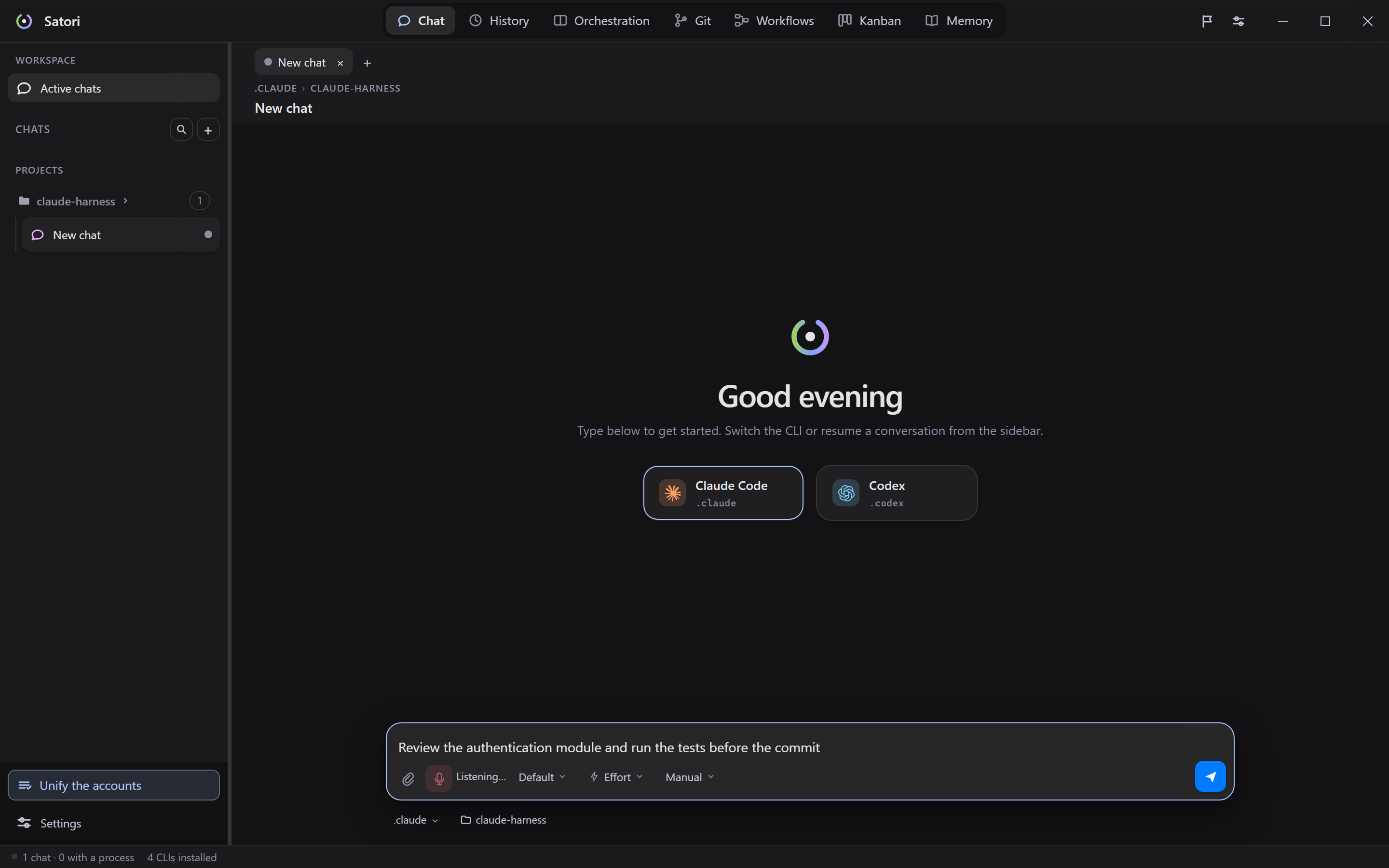
The microphone next to the attachment clip turns your speech into text in the field. Hold it to talk and release to finish, or click once to turn it on and again to turn it off. The text goes where the cursor is and is not sent: you check it and press Enter.
Transcription runs on your machine, without sending audio to the internet, and understands the interface language. On first use Satori asks to download the transcriber and the voice model (about 475 MB, only once). If you switch chats while it transcribes, the text goes to the chat where you started talking. For now dictation exists only on Windows.
Status line
You choose what it shows and in what order, in Settings › General › Chat status line: one toggle per widget, ↑↓ arrows for the order and a preview with sample values.
The Style, at the top of the card, changes the look without changing what it shows, and applies to every provider:
| Style | What it looks like |
|---|---|
| Default | 11px, thin continuous bar |
| Compact | 10px, 2px bar and less space between items |
| Terminal | mono font and block bar ▰▰▰▱▱, like the CLI's status line |
| Pills | each item in a chip with a background; an overflowing measure gets a red background |
| Highlight | 12px, thicker and longer bar, bold numbers |
The Position, right below, decides where it lives: Below the input (the default, on the line with the account and folder) or Above the input, in a card of its own over the message box. Account, folder and Kanban card stay at the bottom either way.
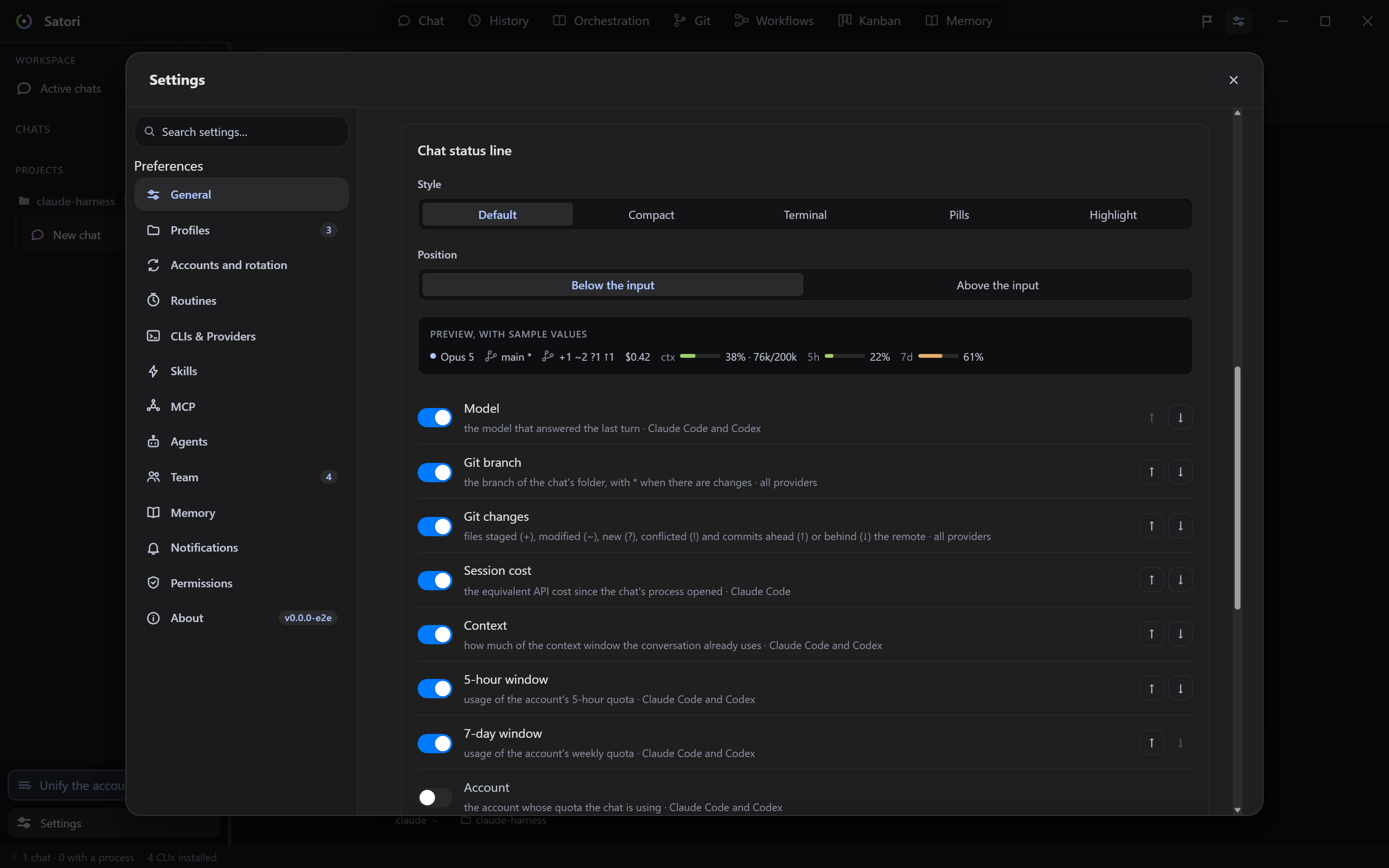
| Widget | What it is | Where there's data |
|---|---|---|
| ● model | the model actually in use, reported by the CLI, with a readable name (Opus 5.5 (1M)); the exact id is on hover |
Claude Code and Codex |
| ⑂ branch | git branch and * if there are pending changes |
all |
| ⑂ changes | + staged, ~ modified, ? new, ! in conflict, ↑↓ commits ahead of and behind the remote; the hover spells it out |
all |
| cost | equivalent API cost since the chat's process started (not charged on a subscription plan) | Claude Code |
| ctx | context used from the window, with the tokens | Claude Code and Codex |
| 5h / 7d | usage of the account's limit windows | Claude Code and Codex |
| account | the e-mail of the account whose quota the chat is using; added on its own when you turn on Accounts mode (see Accounts and rotation) | Claude Code and Codex |
A widget with no data hides itself, and one that doesn't exist in a provider hides in that provider's chats. Colors follow bands: green below 50%, yellow up to 65%, orange up to 80%, red above that.
In Claude Code, 5h and 7d come from the terminal. These numbers are the ones Claude Code's status line writes when you use it in the terminal. If you spend hours only in Satori, the value stops moving; past 30 minutes a ⏱ appears, and on hover you see how old it is. In Codex both arrive live from the CLI itself, every turn.
Who the chat talks to
Each chat talks to one CLI: Claude Code, Codex, OpenCode or Antigravity. Choose it with the account chip, or with one of the cards on the start screen. You can only switch before the first message; after that the chat stays with that CLI.
All four keep one running process per chat, resume conversations from History and get Satori's tools (see Asking the agent). The difference that matters is who asks before acting:
| Claude Code | Codex | OpenCode | Antigravity | |
|---|---|---|---|---|
| Approval | modal for each action (in Manual mode) | none: the policy applies to the whole chat | none: the policy applies to the whole chat | modal for each action (in Ask mode) |
| The mode chip becomes | permission mode | Read-only, Write to folder or Full access | Writes to folder or Auto-approve all | Ask, Edit without asking or Approve all |
| Default | Manual | Read-only | Writes to folder | Ask |
| Background commands strip | yes | no | no | no |
/ menu |
yes | no (the CLI doesn't have it) | yes | yes (/plan and /logout) |
@ menu (files) |
yes, and the content goes along | yes | yes | yes |
| History | yes | yes | yes | yes, slower, and search is by name only (see below) |
| Edit the last message | yes | yes | yes | no (the server doesn't support it) |
| Multiple accounts (profiles) | yes | yes | yes | yes (.gemini-* folder) |
| Attach files | yes | yes | yes | images and text (not PDF or Office) |
| Skills and MCP in Settings | yes | yes | skills only | yes |
| Agents in Settings | yes | yes | no | no (the server doesn't load agents) |
Antigravity signs in with your Google account. Satori uses the official server Google publishes for editors like Zed, and the login is Google's, in the browser, separate from the
agylogin in the terminal: it asks you to sign in once in Settings › CLIs & Providers. Old conversations come from the server itself, which takes about 12 seconds to start: when you reopen the app, an Antigravity chat's messages appear after the others, and in the History section the list takes the same time the first time.
With Codex and OpenCode you choose once, at the start, how much the agent may do, and it does it without asking. OpenCode has no "read-only": its default already writes to the chat's folder. The chat announces the policy when it starts and on every change. Satori's tools (Kanban and Workflows) are the exception: in all of them, changing the board or a workflow asks for permission in the modal.
What stays the same in all four: the answer appearing as it arrives, the grouped actions, the diff card with the before and after read from disk, the message queue and the history.
What each CLI offers on the other screens:
| CLI | History | Skills | Agents | MCP | Orchestration |
|---|---|---|---|---|---|
| Claude Code (each profile) | ✓ | ✓ | ✓ | ✓ | ✓ |
| Codex | ✓ | ✓ | ✓ | ✓ | ✓ |
| OpenCode | ✓ | ✓ | — | — | ✓ |
| Antigravity (each profile) | ✓ | ✓ | — | ✓ | ✓ |
When a feature doesn't exist in that CLI, the control disappears from the screen instead of being grayed out.
The two worlds: Chat and Terminal
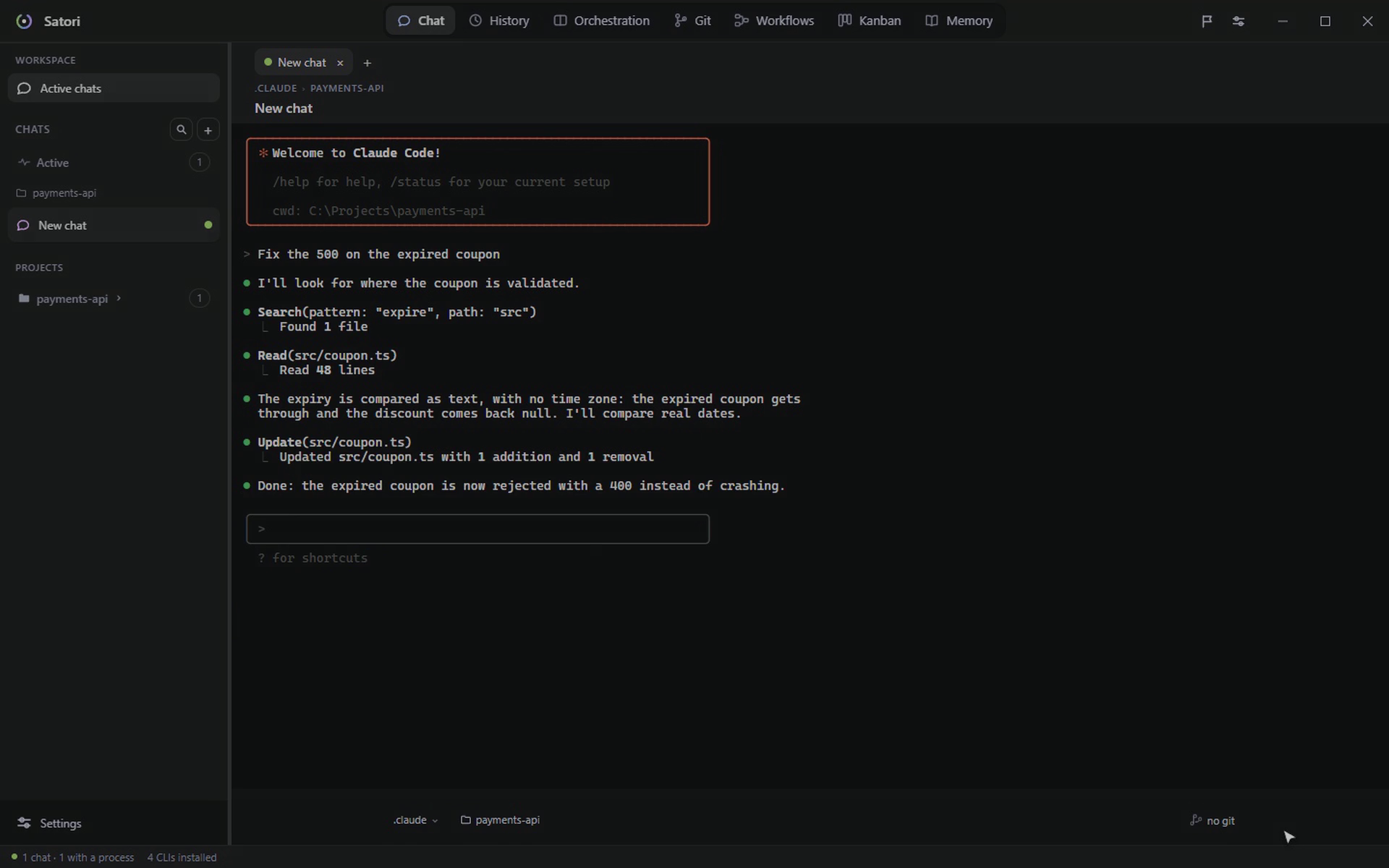
Satori has two worlds for the chat, chosen in Settings › General › Chat world:
- Chat is the usual one: bubbles, Satori's permission window, the status line.
- Terminal puts the CLI itself (Claude Code, Codex, OpenCode or Antigravity) in each chat, just as you see it in your terminal.
In Terminal, the chat opens with the CLI already running in its folder (with no
folder, pick one and it opens). Until the first message, changing the account or
the folder in the chips reopens the terminal there; after it, they stay fixed.
The keys belong to the CLI: permissions, questions,
/commands and the status line become its own. Ctrl+C with text selected
copies; without a selection it interrupts, as in a terminal.
Ctrl+PageUp/PageDown and Alt+↑/↓ still switch chats.
Sidebar, tabs, Git, Kanban, History, Orchestration and Satori's tools for the
agent (Kanban, Workflows, Memory) work the same. What stays in the Chat world only:
turn notifications, automatic account rotation and
Memory capture. In Antigravity, the terminal is the agy CLI, installed
separately: it only uses the default account, doesn't get Satori's tools, and a
conversation from the Chat world continues in it as a new conversation.
Switching worlds asks for a restart, and open chats come back in the new world with the same conversation.
Permissions
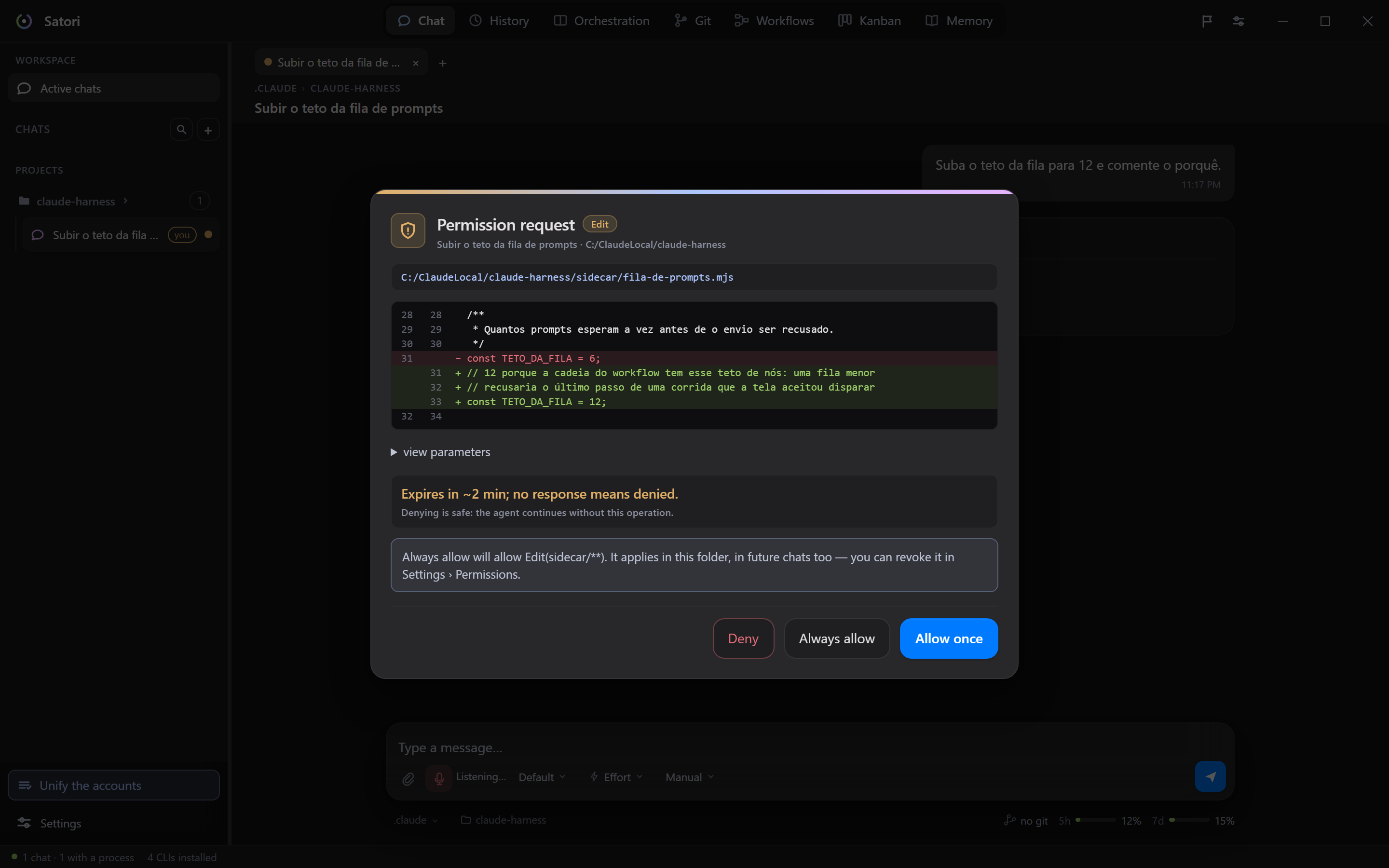
In Claude Code's Manual mode, operations that change something open a modal with the tool and the exact parameters.
The diff is what the write PROPOSES, not what already happened: the request arrives before the file is touched, so what's on screen is exactly what Allow will let happen.
- Allow once: runs it
- Always allow: runs it and doesn't ask again for operations of the same kind
- Deny: the agent gets the reason and continues without that operation
- Esc: denies
- No answer in 120 s: denies
A request that expires never becomes a granted permission.
Always allow writes on screen exactly what it will allow, because it's not always what you'd expect:
| Request | What "Always allow" does |
|---|---|
| Write/edit a file | switches the chat to Accept edits: every future edit goes through without asking |
rm, risky commands |
allows only that pattern (e.g. Bash(rm:*)) |
tool with no rule of its own (e.g. WebFetch) |
allows the tool by name |
In the first case the mode chip, in the message box, changes too, in plain sight. To go back, just choose Manual there.
The rule applies to this profile in this project, and survives closing the chat
and the app; the modal tells you this before the click. It never applies to another project:
allowing rm in a test repository doesn't allow it in the production one open next to it.
A shell command is never allowed whole by name, only by the pattern the CLI
suggests. A chat that starts with a saved rule says so in the conversation.
The ones already granted are in Settings › Permissions, with the
revoke button, which takes effect right away, including in open chats. Satori keeps this in its own
file, and never writes permissions to your profile's settings.json.
If a chat that isn't in front asks for permission, it does not take over the screen: the strip above the message field tells you, with Open, and the list shows the you badge. The 120 s deadline only starts when you open the request. For 0.7 s after the modal opens, keys and clicks are ignored: the Enter of the sentence you were typing doesn't answer the decision for you.
Changed files
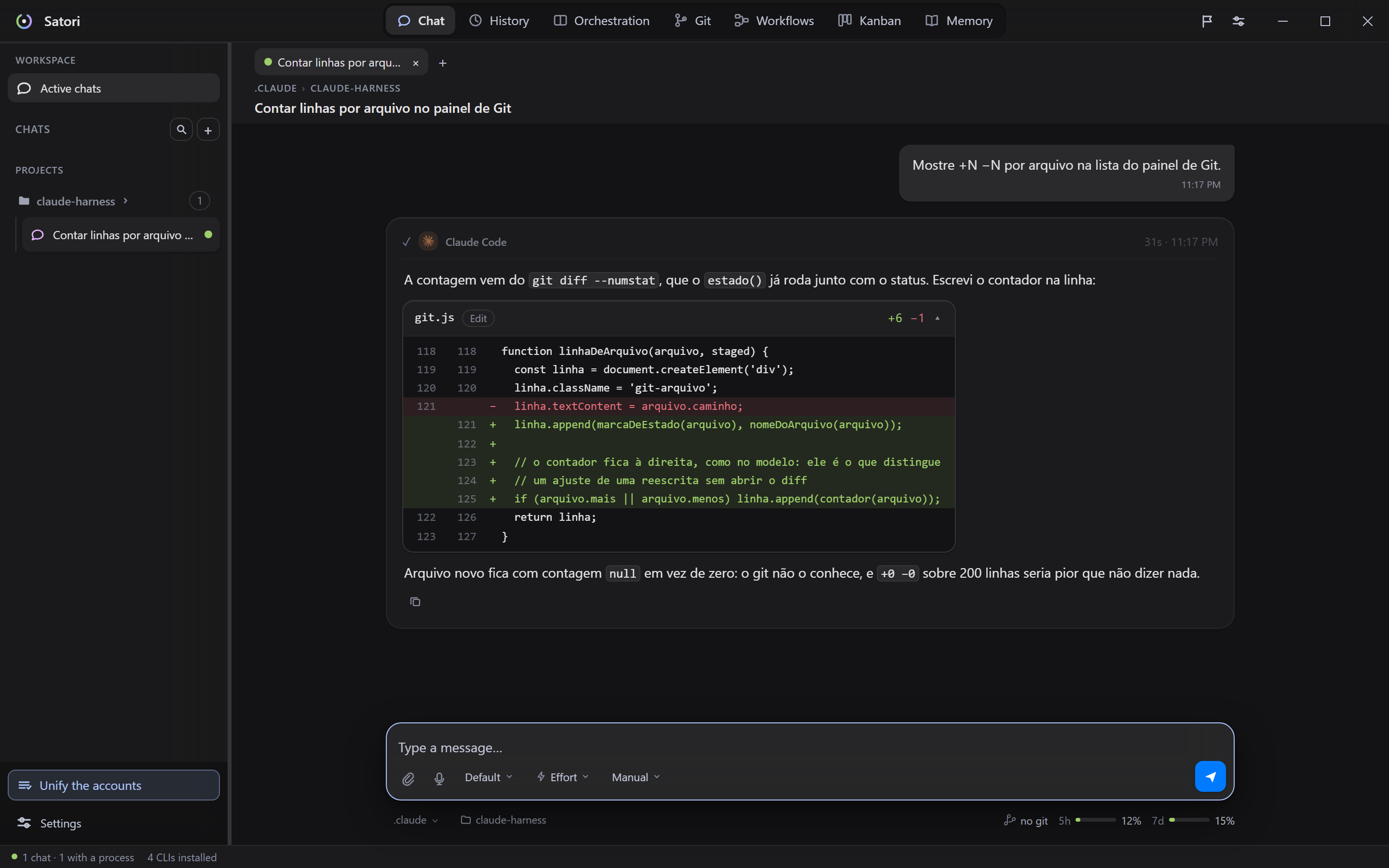
Every file the agent touches becomes a card in the conversation:
▾ calculadora.js [Edit] +12 −3
Click to open the diff, numbered on both sides: the left column is the file before, the right one after.
The diff is read from disk, not from what the agent said it did. Satori reads the file before and after each write tool and compares. If the agent says it changed something and the file didn't change, the card doesn't appear.
Special cases:
new: file created, only added lines- change too large: above 1500 changed lines, it shows the counts without dumping everything into the window
- no text content: binary or deleted file
A file created by Bash (for example echo > arquivo.txt) does not produce
a card: Satori follows file tools, not the shell.
Message queue
The field never locks. Sending a message during a turn queues it instead of refusing it.
Queued messages appear in the conversation with a dashed outline and · queued, and
become a normal bubble when their turn comes. The order is kept. A message
still in the queue can be edited in place, without losing its position.
In Claude Code the message goes in mid-turn, as in the terminal: the CLI
reads it at the next gap between one tool and another, and the bubble changes to
· read, replying…. From then on you can no longer edit or cancel it: it's
already been delivered. This only happens when nothing is queued before it and the model
and mode haven't changed; otherwise it waits its turn. In Codex and OpenCode it always
waits for the turn to end.
The button changes accordingly:
- field with text → send (the plane)
- empty field during a turn → stop (the square)
Stop discards the queue. The pending ones get struck through and a notice says how many there were. Without this, you'd tell it to stop and the next one in the queue would start right after.
Several chats at once
Ctrl+N or the + in the sidebar creates a chat. Each one has its own history, profile, folder
and mode. If there's already an empty "New chat", the gesture reuses it instead
of stacking another.
Where a new chat gets its choices from. With Copy from the open chat on
(Settings › General, the default), it starts with the account, CLI, mode and
model of the chat in front. Turned off, it starts from the defaults set there. The folder
is never copied: it comes from the project group's + or, without it, from the default
folder. Otherwise every new chat would land in the project of the conversation that was in
front.
You can send a chat to work, go to another and come back: the colored dot shows who's busy. A chat that fails in the background gets a red dot without you having to open it.
Chats from different folders sit in separate groups in the list, each with the project name.
Closing a chat (×) interrupts whatever is running in it.
The workbench comes back when you open the app. The chats that were open are restored in the sidebar, with their latest messages and the name you gave each one, but none of them opens by itself: the start screen is what stays in front. Each one's CLI process only starts when you send the next message. A chat that never got an answer isn't saved, because there would be no conversation to bring back. If a restored chat's conversation no longer exists in the CLI's history, it comes back as a new chat, with a notice, and leaves the workbench. You can turn restoring off in Settings › General.
Worktrees: one chat per branch
Two chats in the same folder compete for the same files: one's agent edits
what the other is reading, and git status mixes both pieces of work. A
worktree solves that: it's a second checkout of the same repository, with its own
branch, in a separate folder.
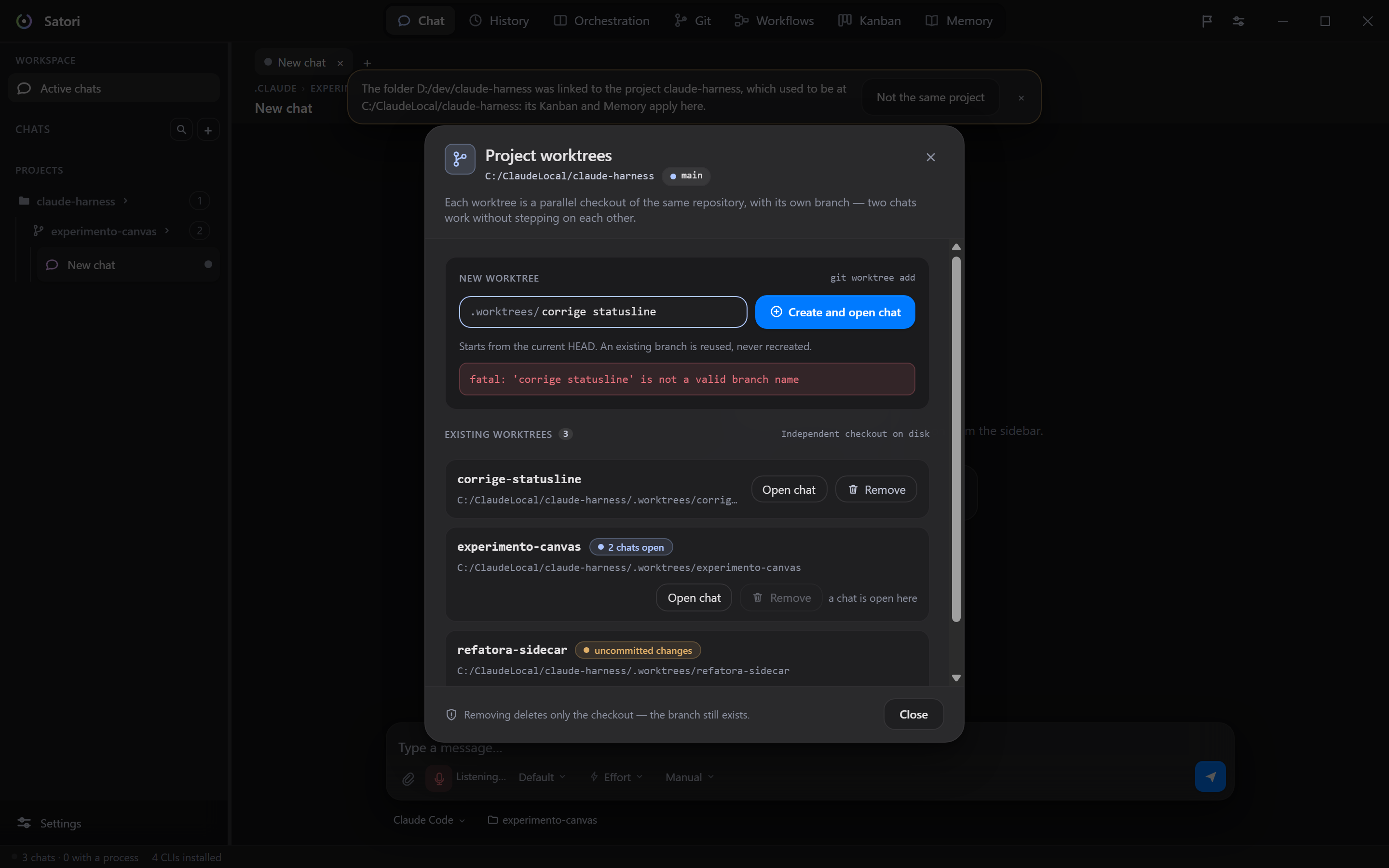
Open it from the ⑂ in the Git panel header, or from a
project group's ⋯ in the chat list. The dialog does three things:
Create. Type the branch name and click Create and open chat. The branch
starts from the repository's current state, the folder is created at
<project>/.worktrees/<branch> and the chat opens right there, in a subgroup inside the
project in the sidebar, with the branch icon and the branch name. A name that already exists as a branch is not
recreated: the chat opens on the work that was already in it.
Open. The list shows the repository's worktrees. Open chat creates a new
chat in any of them, including the ones you created from the terminal, which
appear marked as external.
Remove. Two clicks (the first just arms the button) delete the folder. The branch stays in the repository: nothing you committed is lost.
The remove button doesn't appear when removing wouldn't make sense:
| Situation | Why |
|---|---|
| there's a chat open in that folder | the chat would be left pointing at a folder that's gone |
the worktree is external |
it wasn't created by Satori, and the app doesn't delete what it didn't create |
If there are uncommitted changes, git itself refuses, and its message
appears in the dialog. Commit, stash or remove it from the terminal.
Closing the chat deletes nothing. The folder is yours and stays where it is. When you're done (merged, became a PR, gave up), go back to ⑂ and remove it.
The .worktrees/ folder is hidden from the project's git status by a rule
local to your clone (.git/info/exclude): the repository's .gitignore isn't
touched, and none of this ends up in one of your commits.
Git
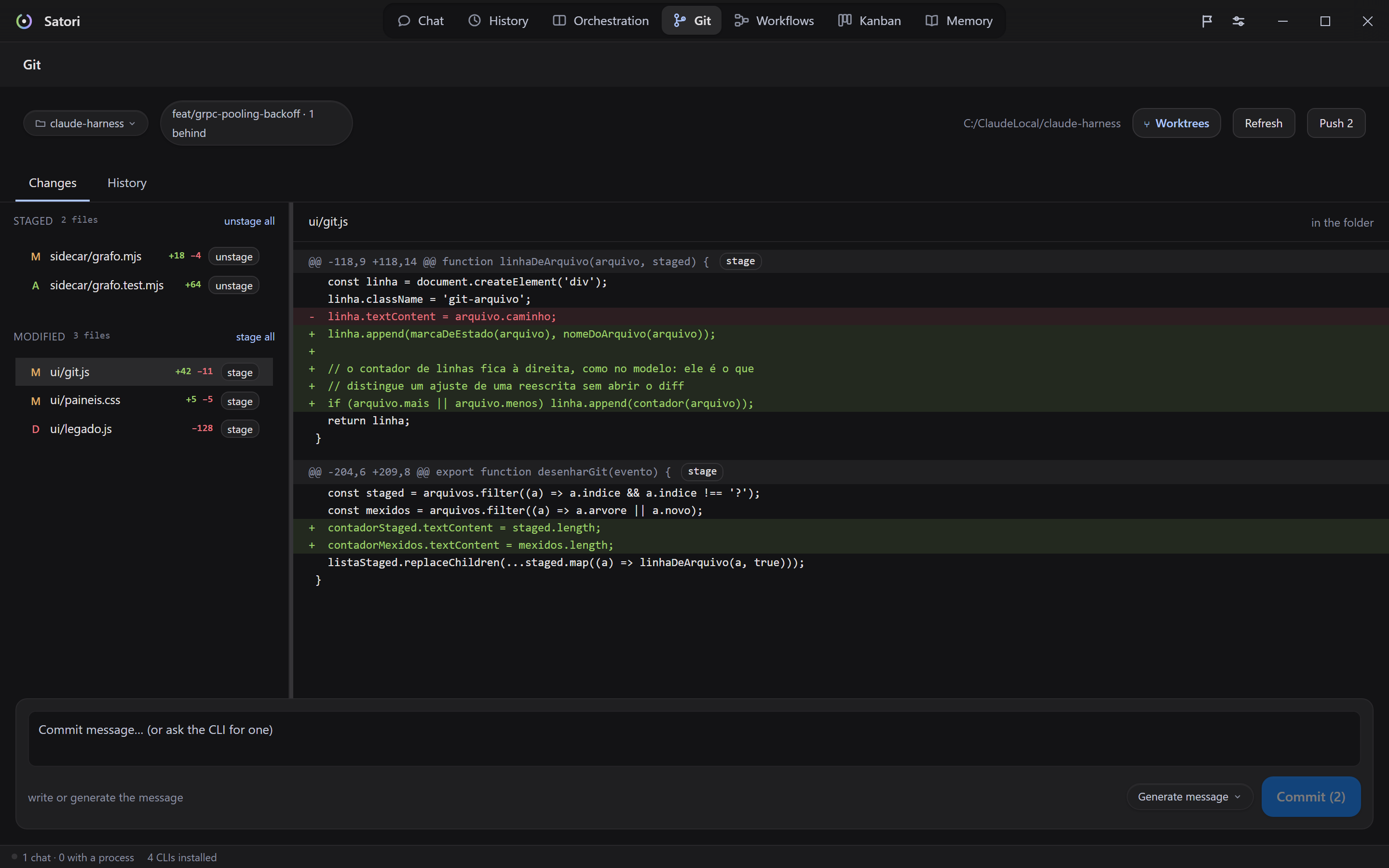
The repository is chosen in the first chip at the top, and it's remembered: it doesn't change when you switch chats.
The chip's list has Choose folder…, Follow the active chat and one item per project you have open in some chat. The chip is dashed while it's following the chat.
On the left, two lists: Staged (what will go into the next commit) and Modified (what changed and hasn't gone in yet). Each row has the git letter (M modified, A new, D deleted) and a stage or unstage button. The stage all and unstage all shortcuts are in each list's header.
Click a file and the diff appears on the right, in hunks. Each hunk has its
own button: you can stage just one piece of the file and leave the rest
out, like a git add -p without the command line.
Generate message sends what's staged to a CLI to write the commit message. Choosing the CLI in the list is what triggers it, because it uses the account's quota. The message lands in the field and you edit it before committing; whatever is already written there becomes extra instruction for the CLI.
Git commits, not the agent. The AI writes the sentence and stops there: what goes into the commit is exactly what's staged, and you've seen what it is.
Commit is only enabled with something staged and a message written. After it, the button on the right publishes: Publish branch when there's no upstream yet, Push N when there are commits to push.
The panel has two tabs. Changes is what's described above. History is the commit tree: the lanes show where each one came from, with branches and tags marked on the line. Click a commit and what it changed appears beside it. The list loads 200 at a time, with load more at the end.
The divider between the two columns can be dragged, on both tabs. Double-click it to go back to the default size, and the chosen width is remembered.
Workflows: chained AI steps
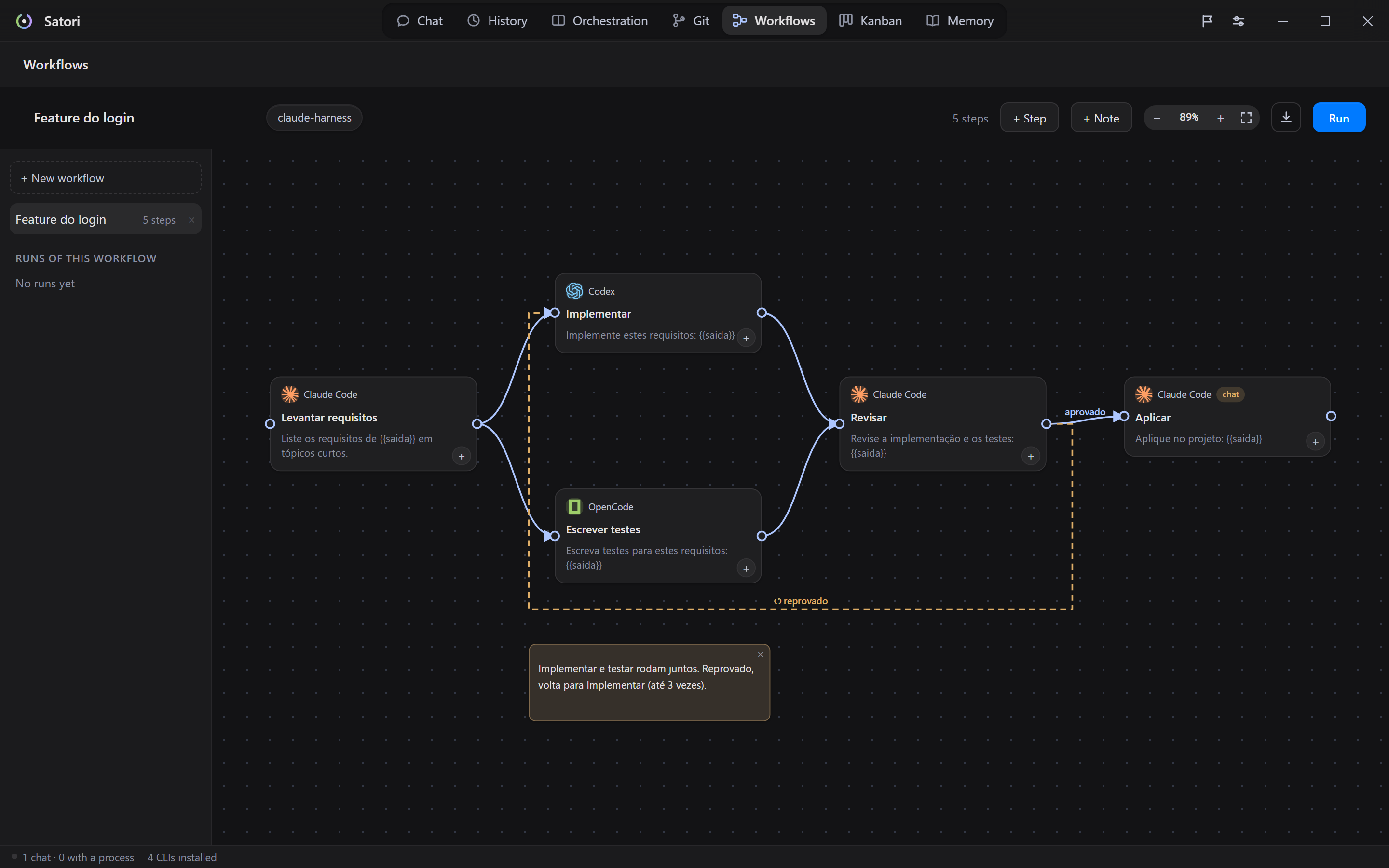
A workflow is a sequence of AI steps you build once and run as often as you like. One step's answer becomes the next one's input; steps side by side run at the same time, and a step that receives from two joins both answers.
Build. In Workflows (top bar), + New workflow creates a workflow
with one step. Click a step to edit it on the right: name, AI, account, model,
effort, Team role and the prompt. The + at the corner of a step creates the
next one already linked; to link two steps that already exist, drag from the
dot on the right of one to the other. Clicking an arrow selects it: its
condition and Remove the arrow show up on the side. + Note puts a loose
reminder on the screen. Everything is saved right away — you don't
need to run for the workflow to be kept.
The {{saida}}. In the prompt, {{saida}} is the answer of whoever points
to the step. In the first steps, it is the input you type when running. A
step with no prompt just passes on whatever arrives.
Run. Run asks for the input and starts a run. Every run is new: running again doesn't continue the previous one's conversation. The run shows up in Runs of this workflow, with the state of each step, and keeps running even if the window reloads. Click a step of the run to see what it received and answered; Open as chat continues that conversation in a normal chat. Stop interrupts what is running.
Condition: one path or the other. Give an arrow a condition (click it
and type, for example, approved). The step it leaves from becomes a decision
step: Satori asks it to end its answer with a line
VEREDITO: approved | rejected (the labels of the arrows leaving it), and only
the arrows with that verdict are followed. The steps on the path not taken are
skipped, and the run still finishes fine. If the step doesn't give a
verdict that matches the arrows, it fails saying why — Satori doesn't guess the
path.
Loop: go back and redo. Drag from a step to another one that comes before it and a loop-back arrow is born, dashed, with the condition redo (change it on the side; it always needs one). When the step gives that verdict, the run goes back: the target step and everything after it run again, and the target receives the answer of whoever rejected it, so it knows what to fix. Each loop-back arrow has a loop limit (3 by default, up to 10): past it, the run stops with an error, so it doesn't spend API in a loop. In the run, the step shows the verdict it gave and which round it is on.
In a worktree, away from your copy. In the Run dialog, the Run in a new worktree box makes each run create a git worktree (see Worktrees) with its own branch, and the steps — standalone and as chat — work in it; the run's banner says which one. The worktree stays after the run, for you to review what the steps did; when you're done, remove it from the Worktrees dialog. The choice is saved with the workflow. If the workflow's folder isn't a git repository, the run refuses and says why.
How each step runs. In the step panel, How it runs picks one of two ways:
- Standalone, without asking permission (the default): runs in the background, as in Orchestration, and can create and delete files in the workflow folder without asking.
- As a chat, with you approving: when the step's turn comes, Satori opens a chat with it and sends the prompt. The agent asks for permission and may ask questions, and the run waits for the end of the first answer. Denying a permission there makes the step fail and the run stop. The step gets the chat mark on the board.
Reloading the window closes the chats, so an "as a chat" step that is running fails (with the reason written). The "standalone" steps carry on.
Subagents. When a Claude or OpenCode step creates subagents, the node shows how many there are and how many are still working, and the step panel lists each one. (In Codex the CLI doesn't show subagents in this mode.)
Export. The down-arrow button in the header saves the workflow as a PNG, the way it is on screen — in an open run, with the state of each step.
If you used the Canvas, you'll find the old chain in Workflows, imported once as Canvas flow: one step per chat, with each one's AI, model, account, role and step, plus the arrows and the notes. The chats stay in the sidebar list, untouched.
Team: roles a chat can take on
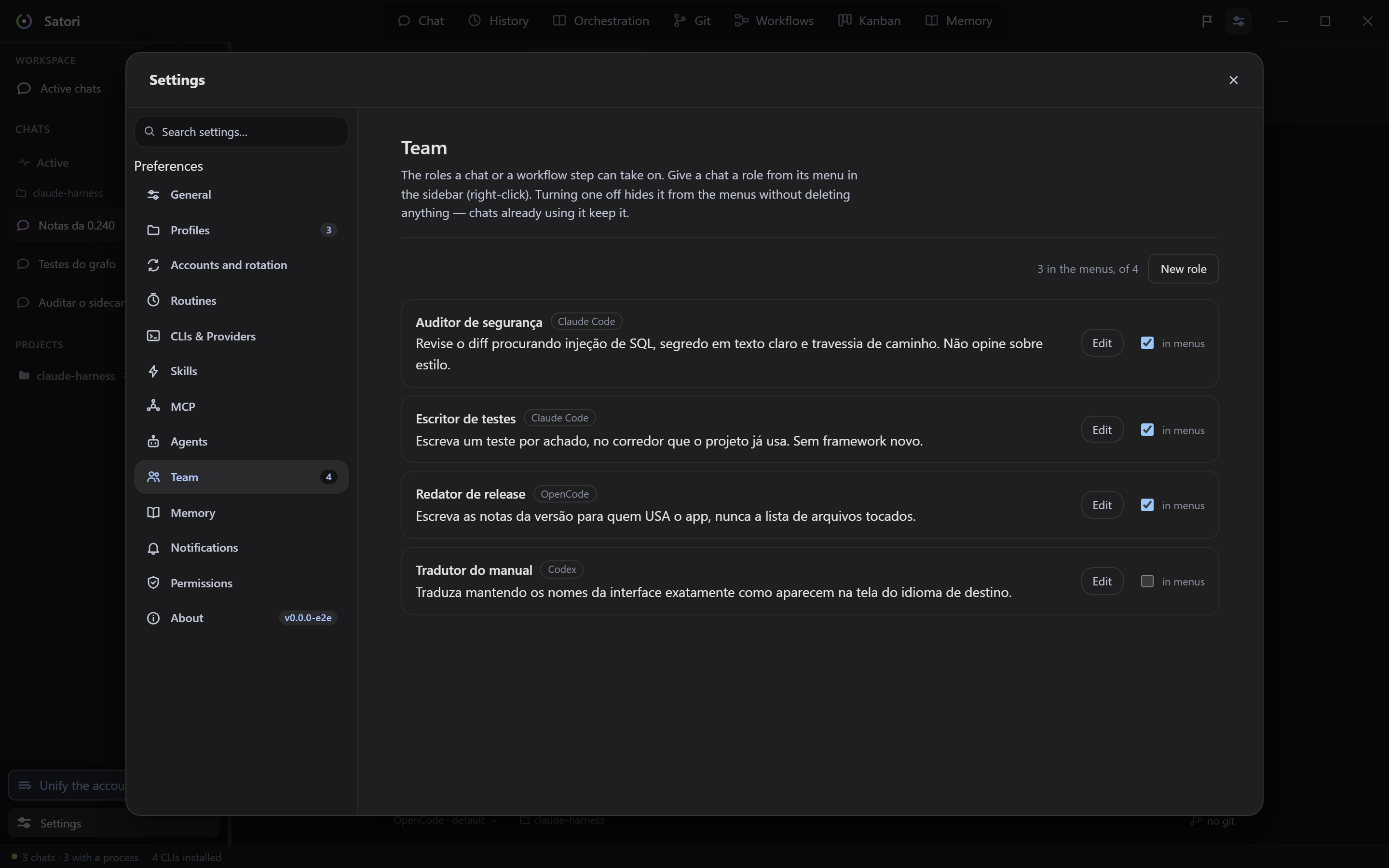
A role is name + instruction + CLI + model + effort + mode. Giving a chat a role makes the instruction reach the model and hold for the whole conversation, without becoming your message and without appearing in the conversation. It's for what you repeat: "review looking for SQL injection", "write the release notes for users".
Creating and editing happen in Settings › Team: New role creates one, Edit opens the same form with the role filled in, and each row's switch turns it on and off.
Giving a chat a role is done by right-clicking it in the sidebar:
| Menu option | What it does |
|---|---|
| Role: <name> | gives the chat that role (the one it already has gets a ✓) |
| Role: <name> — opens a <AI> chat | a role for another AI: creates a new chat, already wearing it, in the same folder |
| Remove the role | takes the role off; only shows when the chat has one |
The instruction is read when the session opens. Giving a role to a chat that has already talked applies in the next chat, not the next send; the chat itself tells you. Model and mode apply on the next turn.
A role for another AI doesn't swap the chat. A conversation in progress doesn't move from one CLI to another: the new chat is born in the same folder, and the old one stays intact, with its conversation.
In Workflows, the role is picked in the step panel, under Team role (see Workflows).
Turning it off doesn't delete it or take it off chats: the role disappears from the menus. A chat already wearing it keeps the role.
Kanban: the project board
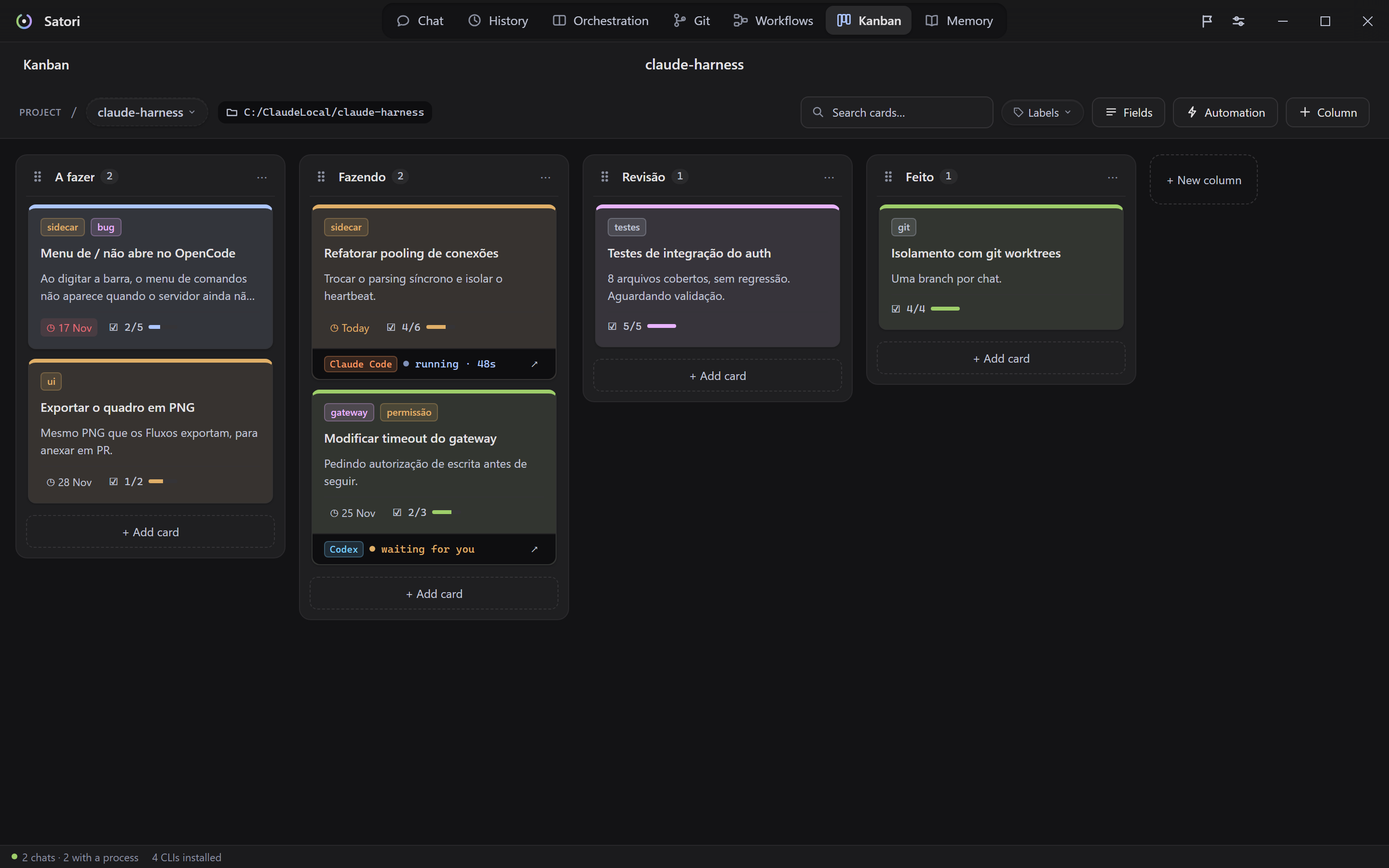
The Kanban on the top bar is a task board per project. The chip next to Project picks which one, and the choice is remembered; with a dashed border, it's following the active chat's folder.
A new board starts with To do / Doing / Review / Done, and the columns are yours:
| Gesture | What it does |
|---|---|
| + Column (or + New column at the end) | creates a column |
| double-click on the name | renames it |
| drag by the column's header (the grab icon lights up on hover) | reorders |
| ⋯ › Delete column | deletes it, only if it's empty; with cards, the board says how many there are |
The card has a title, description, color, labels (comma-separated), due date
and checklist. + Add card creates one; clicking the card edits it; dragging it
moves it to another column or position. Search and the Labels chip filter
what's shown. An https:// address written in the description becomes a link on the
card, and clicking it opens the browser.
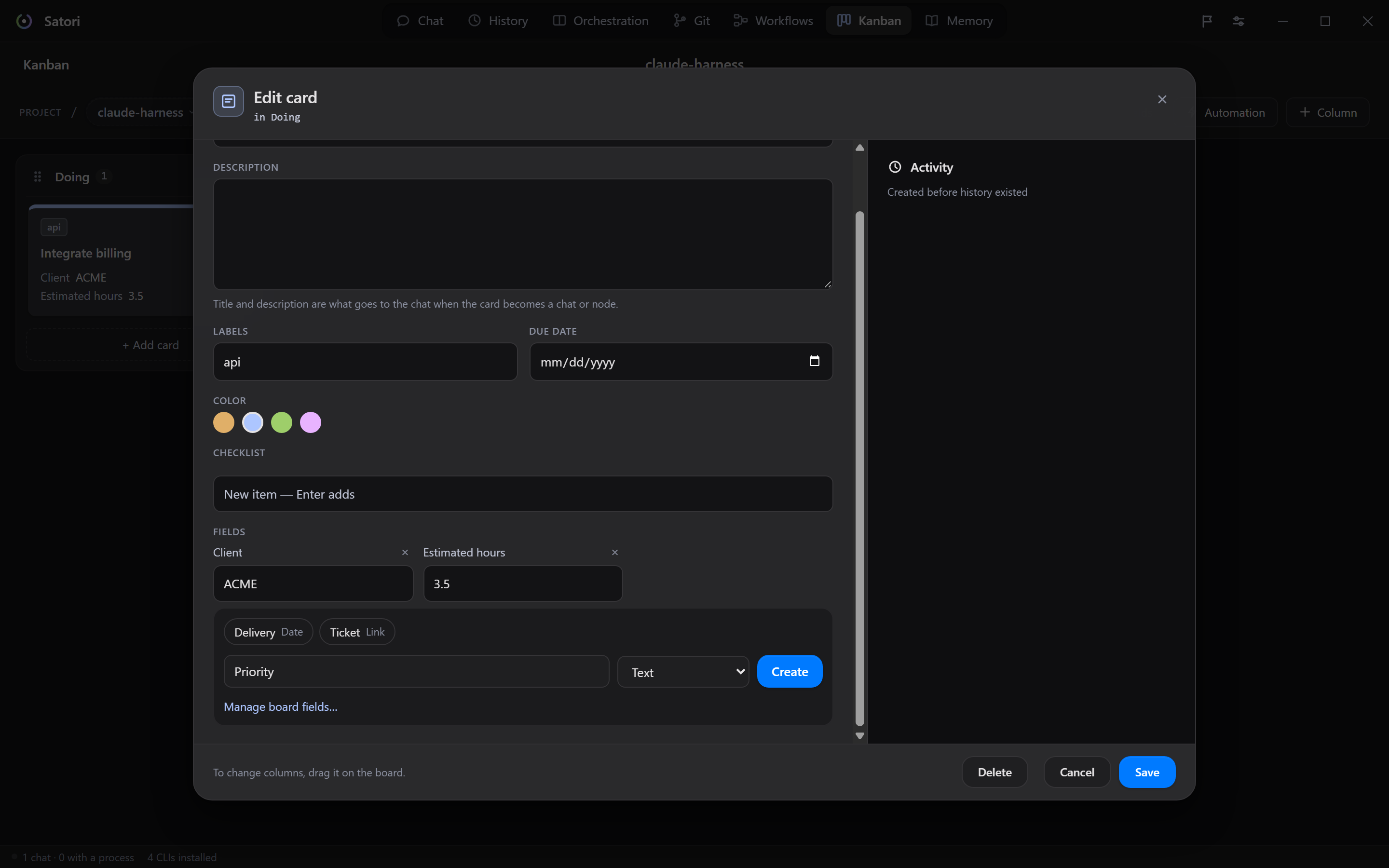
Custom fields live in the Fields button on the board header: create
text, long text, decimal number, whole number, date, time,
date and time or link fields. A link is an https:// address, which opens in
the browser, or a folder on the computer (C:\Projects\Client), which opens
in Explorer; a network folder only through its mapped drive letter. Each card uses only the fields you add to it: on
the card, + Add field offers the board's fields and creates a new one right
there, which then belongs to the whole board, and the × next to the name
removes the field from that card. The name and the order (↑ ↓) can change; the
type can't after it's created. To delete a field from the board, use the
trash can on its row in the Fields modal, which also opens from Manage
board fields… inside the card's + Add field. Deleting a field that has values asks first,
because it takes the value off every card.
Sort cards lives in each column's ⋯: Manual (drag), Date added, Last changed or Alphabetical, and Reverse order flips the direction (oldest first, Z–A). The choice is per column. With an automatic order, dragging inside the column doesn't change the position; go back to Manual for that.
At the bottom of the open card is the Activity: when it was created and, from newest to oldest, each change with date and time (title, description, color, label, due date, checklist item and column change). Changes made by the agent are included too. Reordering within the same column isn't, and a card created before this version shows as "created before history existed".
From the card to the work, through the action that appears on hover: Turn into chat opens a chat in the project folder with the title, the description and the open checklist items already written in the send field. Nothing is sent: you review it and send it.
The linked card gets a strip with the CLI and what the chat is doing right now
(running · 00:48, waiting for you, failed, ready), and ↗ takes you to the
conversation. On the way back, the chat shows the ▦ <column> chip in the composer
bar (clicking it takes you to the card on the board).
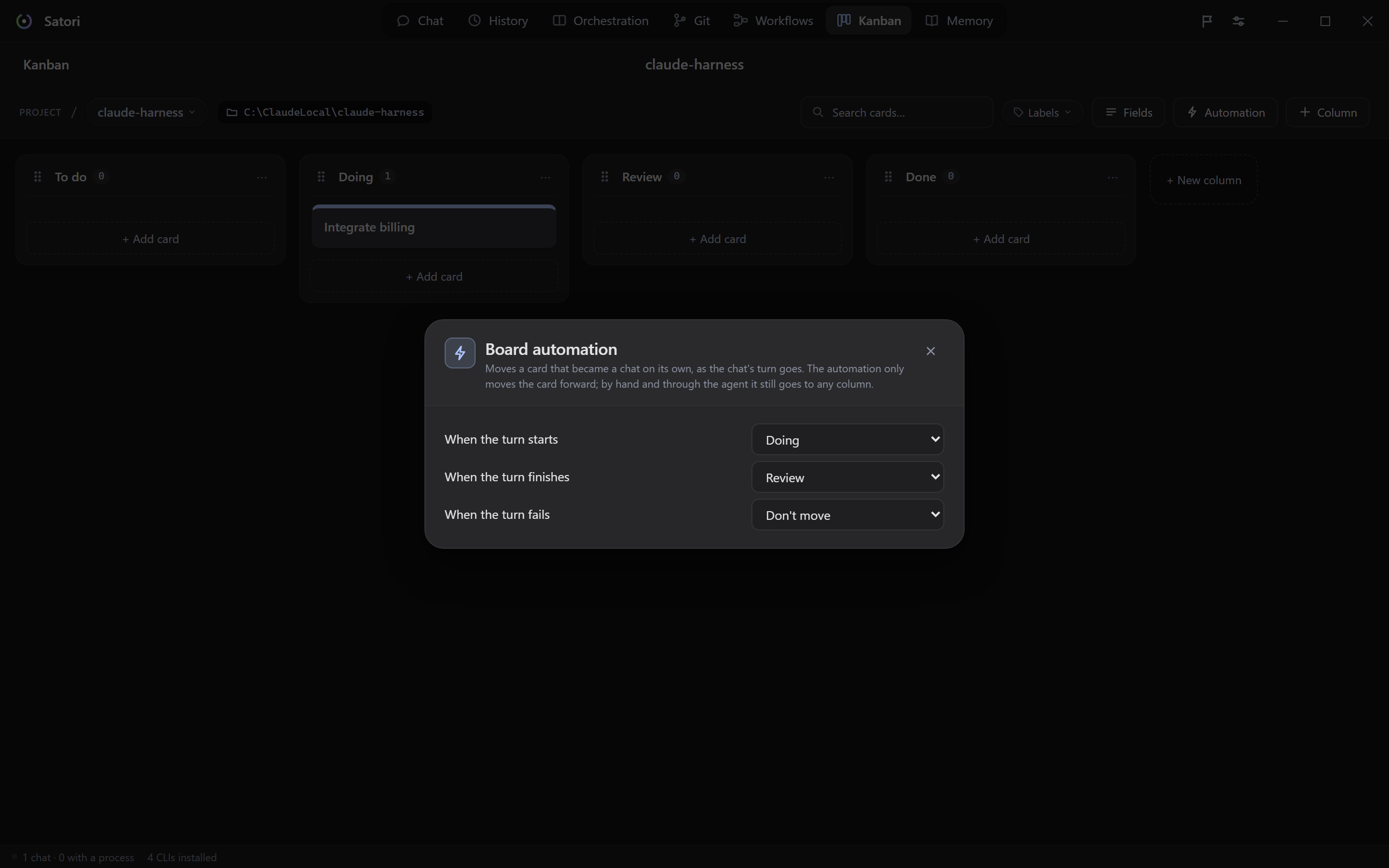
Automation sits in the board header, next to Fields, and is per board: choose which column a chat's card goes to when the turn starts, when it finishes and when it fails — or Don't move. It applies to a card that became a chat. The automation only moves the card forward: if it is already in a column further right (because you or the agent moved it), it stays. By hand and through the agent the card still goes to any column. With no rule, which is the default, the card doesn't move on its own. The move shows up in the card's Activity, marked as done by the automation. Deleting a column turns off the rule that pointed to it.
Deleting a card that became a chat asks first. Once confirmed, the chat stays open; it's just no longer linked to the card.
Asking the agent: the board and Workflows from the chat
Every Satori chat — Claude, Codex, OpenCode or Antigravity — already comes with Satori's tools for the board and Workflows. Just ask in words:
- "create a card in To do to review the login, with a checklist: read, test and document"
- "move my card to Review and check the test item" — my card is the card the chat came from (through Turn into chat)
- "create a workflow with three steps: one that gathers the requirements, one that implements and one that reviews, linked in that order"
- "run the Review workflow with the input 'the login screen' and tell me how it went"
- "in the Review workflow, if the reviewer rejects, go back to the author, at most 2 times"
| The agent can |
|---|
| read the board; create, edit, move and delete cards; check checklist items |
| create, rename, reorder and delete (empty) columns |
| list and read workflows; create a workflow with steps and arrows; edit and delete a step |
| link and unlink steps, with conditions and loop-back arrows (and their limit); delete a workflow |
| run a workflow with an input, follow the run and stop it |
| list the Team roles and create a new role (name, instruction, AI, model, effort and mode) |
Every change asks for your permission in the usual modal, with Always allow applying to this profile and this project — running a workflow too, because it spends API like your Run. Reading asks nothing.
What the agent changes in a workflow shows up on the Workflows screen without taking you off where you are. A run it starts goes into Runs of this workflow as if you had clicked, with the worktree if the workflow asks for one, and an "as a chat" step waits for you the same way.
This only exists with Satori open. The tools live inside the app; the same CLI opened in a terminal doesn't have them.
Memory: what Satori remembers about the project
Memory keeps, per project, what happened in your chats, and hands a summary to the next chat in the same project. It comes turned off: turn it on in Settings › Memory.
What is kept: what you ask, the tools the agent used (the
name and the target, like the file or the command) and the final answer of each turn.
Everything lives in memoria.db, in Satori's data folder (Settings › About
shows where). Recognizable keys and passwords are replaced with a placeholder, and the
path of your home folder becomes ~. What leaves the machine is what would leave anyway:
the summary goes into the next chat, which talks to its own provider, and consolidation
(below) goes to the chosen CLI.
How it works:
- Segment. What a chat accumulates becomes a segment when you close the chat or when it sits idle for 30 minutes, or right away, by right-clicking the chat in the sidebar list › Save to memory now (with a turn running it asks you to wait). The closed segment becomes a session page, and the project gets a "where we left off" for the next chat.
- Consolidation. Each closed segment is rewritten into up to five pages: session, decision, pitfall, concept or rule. This is one call to the CLI chosen in Settings (Claude Code or Codex), with the model and account you choose, and it uses that account's quota. The call doesn't save a conversation in your CLI profile and doesn't use any tools. A segment that's too short (a single message, with the agent touching nothing) doesn't become a call: it stays with the session page. An explanation of what the project's files already say (the agent read the docs and summarized them) doesn't become a page either: the file stays the source, and a copy in the memory would go stale.
- Next chat. A new chat in the same project receives, when it opens, the "where we left off" (only once, with no expiry: the most recent one applies), the content of the pinned, rule and pitfall pages, and the titles of the rest. What doesn't fit goes as a title only, for the agent to read when it needs to. The "where we left off" gives the last request (or the question left open), where the agent stopped and the files changed. A resumed chat receives the pages, but not the "where we left off", which belongs to the new chat. In Antigravity a resumed chat receives nothing: there, memory goes along with the first message of a new conversation. In a Claude Code chat, pages born during the conversation (from other chats) also arrive, along with your next message; the ones the chat itself produced don't come back to it.
- The agent reads too. Every chat has the tools
memoria_buscar,memoria_ler,memoria_recentes,memoria_gravarandmemoria_handoff. The last one leaves a deliberately written "where we left off" (ask the agent when you wrap up a piece of work, or right-click the chat › Summarize for the next chat), and it wins over the automatic one in the next chat. Saving and leaving the "where we left off" ask for your permission, like any write.
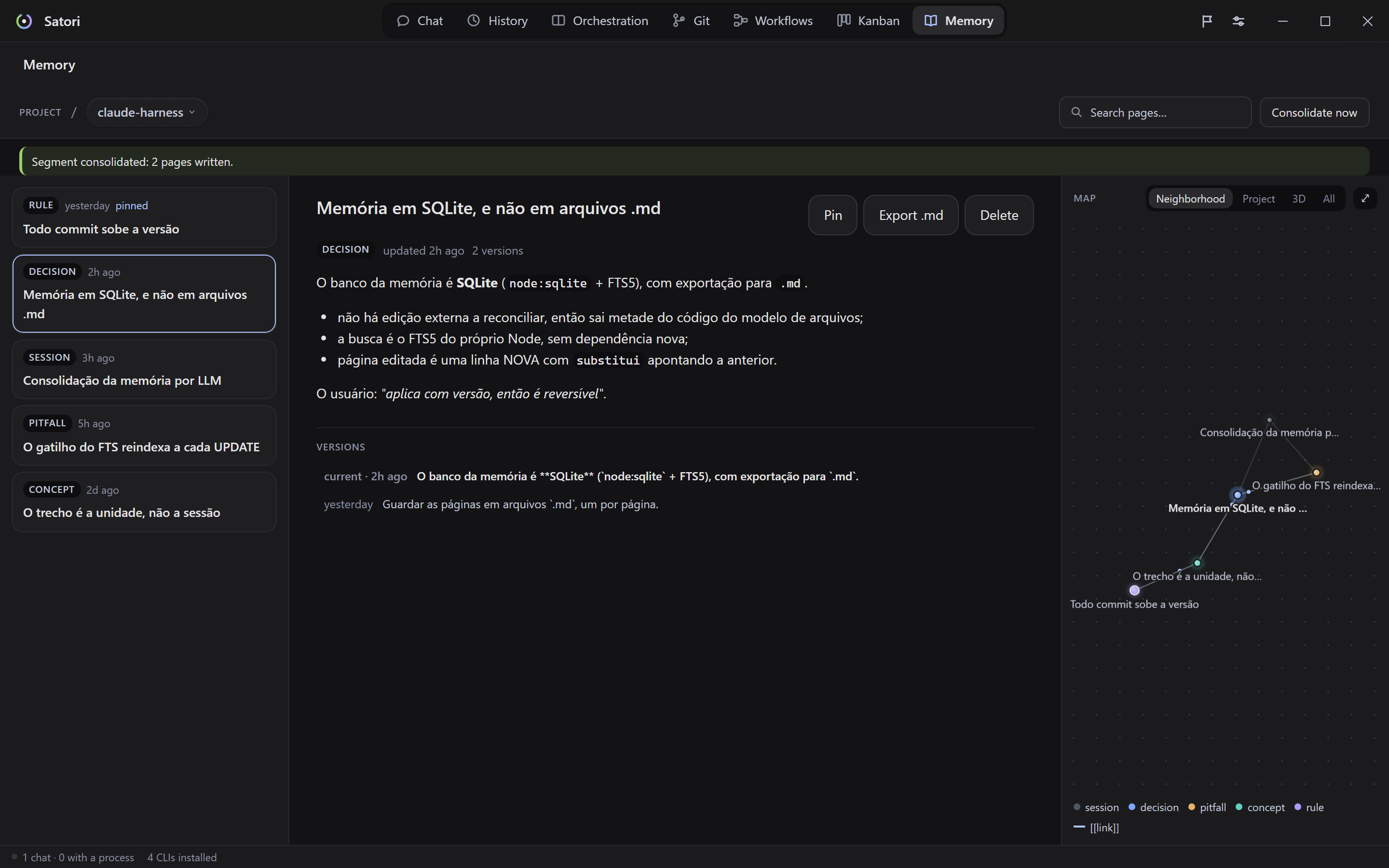
The section. The chip next to Project picks which project the pages belong to; with a dashed border, it follows the active chat. Search looks in the title and the text. Clicking a page opens it in the reader:
| In the reader | What it does |
|---|---|
| Pin / Unpin | a pinned page stays at the top of the list and always goes into the next chat's summary |
| Export .md | saves the page as Markdown, wherever you choose |
| Delete | deletes the page and all its versions. The dialog says how many, and there's no undo. On a session page, the captured conversation it came from (messages, commands, the "where we left off") stays, unless you check Also delete the captured conversation |
| Versions | each time the page is rewritten, the previous one is kept. Clicking an old version shows it, with a notice that it's old |
| Restore this version | the old version becomes the current one again, as a new version. Nothing is deleted, so restoring can be undone too |
The map. To the right of the reader (above it, in a narrow window) is the map of the
open page's links. The lighter solid lines are links written in the
text, in the form [[Page title]], and they turn blue for the open page or the
one under the mouse (consolidation writes them when a page
talks about another page's subject), and grey lines connect pages that came from the same stretch
(solid) or the same chat (dashed). Neighborhood shows the open page
and what is up to two steps from it; Project shows the whole project;
3D places the project's pages in a rotating space where pages about the same
subject sit close together, linked or not, with the links drawn on top
(dragging rotates, the wheel zooms, and the auto-rotation stops once you touch
it, or for good with the ⏸ button next to the modes);
All opens the map full screen with the pages of every project, each
project as a bigger node linked to its pages, plus the links that cross
projects and a folder that lives inside another (a worktree and its repository).
The ⤢ button opens and closes full screen in any mode, and clicking a node of another
project opens that page there. Clicking a node opens the page; dragging the background
moves the map, the mouse wheel zooms, and a node can be dragged. Colors are
the page types, in the legend below. Pages saved before links existed show
only the grey lines until they are rewritten.
Link pages (in full screen) adds links to the pages that already
existed before consolidation started writing them. The CLI and model from
Settings › Memory read the pages in batches and only point out where a page
talks about another page's subject; Satori does the writing, putting ([[Title]]) right
after the excerpt, so the text doesn't change beyond that. Each changed page gets
a new version with the previous date, and it can be restored. It asks first,
because it uses that account's quota: one call per batch. From the second time on,
only the pages that are new or changed since the last pass are sent, so
clicking again costs little. A link to another project comes out as
[[project:Title]].
A link to a page that does not exist yet stays in the text and starts working when the page appears: consolidation receives these waiting links and gives the new page exactly the title that is waiting for it.
The strip below the header says what consolidation is doing ("2 segments queued", "Segment consolidated: 2 pages saved") and why it didn't ("Consolidation failed: …", memory turned off). A segment that fails is retried on its own, up to 5 times, with growing waits (30 s, 1 min, 2 min, 4 min), and the strip says when the next one comes. Consolidate now retries, in this project, the segments that haven't worked yet, and restarts the count.
With memory turned off, nothing new is kept, but the section still shows what already exists, and you can read, export and delete it.
How long the raw text stays. The messages, commands and answers that became pages stay in the database forever, unless you pick a period in Settings › Memory › Delete raw text after (30, 90, 180 days or 1 year). After the period, the raw text goes and the pages stay. There's no undo, and that segment can't be consolidated again. Anything not yet turned into a page (failed consolidation, deleted page) is never removed by the period.
If the open page changes while you read (consolidation finished, or the agent saved), the reader switches to the new version on its own. If you were reading an old version on purpose, it stays there, with the notice.
History
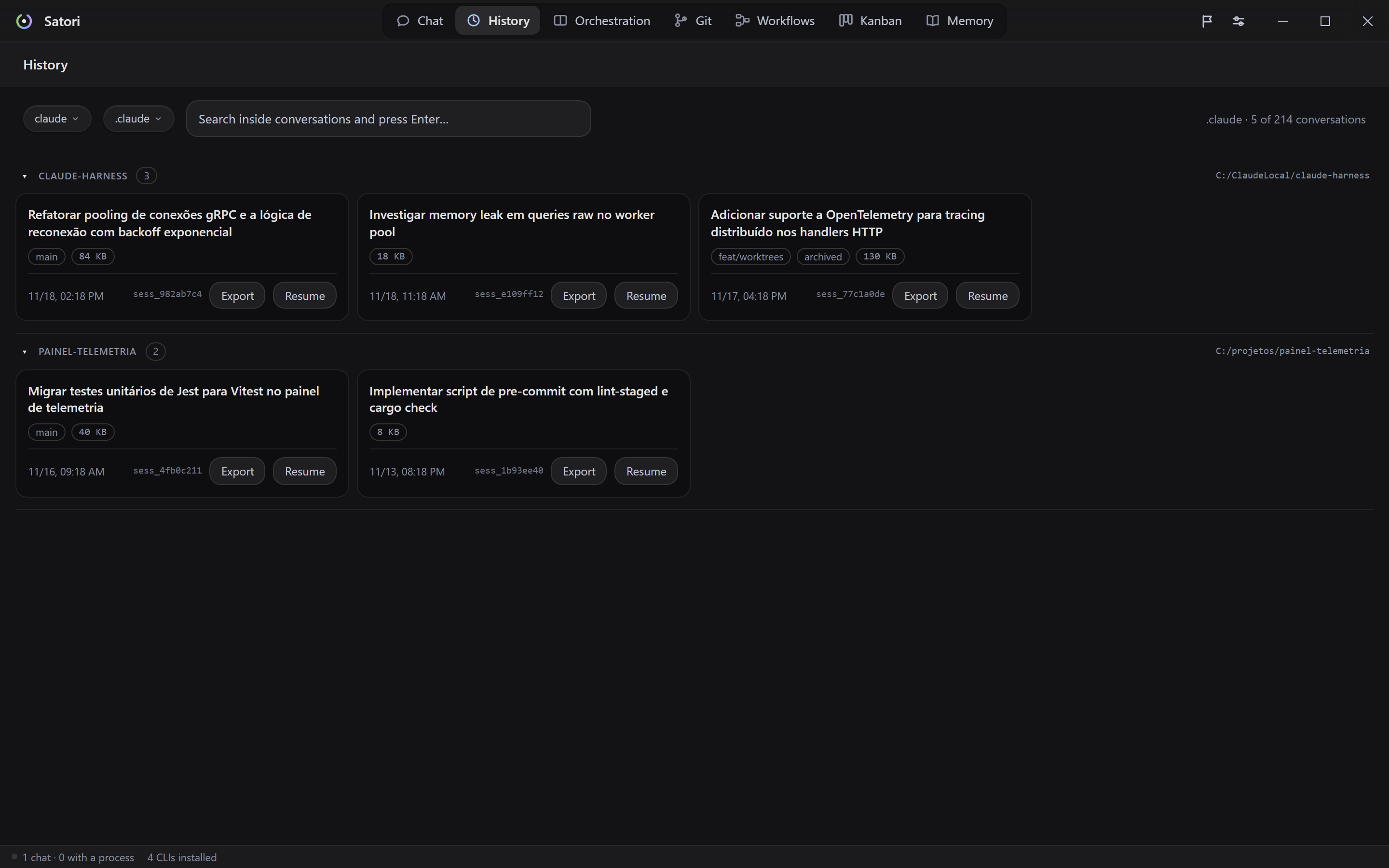
All of the profile's conversations, grouped by project and sorted from newest to oldest. The folder you're working in comes already open. The chip on the left picks the source: Claude Code, Codex, OpenCode or Antigravity.
Satori doesn't keep any conversations: it reads what each CLI already saves. Claude
in <profile>/projects, Codex in ~/.codex/sessions, OpenCode in its
database, opened read-only. In practice, conversations you had in the
terminal show up here too. OpenCode doesn't keep the file diffs,
so its export lists the files touched without the lines.
Antigravity is read through its own server, which takes about 12 seconds to start: its list is slow the first time, each conversation is named after your first message, and search looks in that name and in the folder, because the server doesn't expose the rest of the text.
| Action | What it does |
|---|---|
| Search | Type and press Enter. Searches inside the text of every conversation |
| Resume | Opens a new chat and continues where it left off; the agent remembers what was discussed |
| Export | Saves the conversation as Markdown, with folder, branch and date in the header. Known secrets (keys, tokens, Authorization:) come out as [redigido], including inside the diffs |
Resuming isn't just showing the old messages on screen: the agent really gets the history. You can ask "what did we do here?" and it answers without rereading the files.
Skills
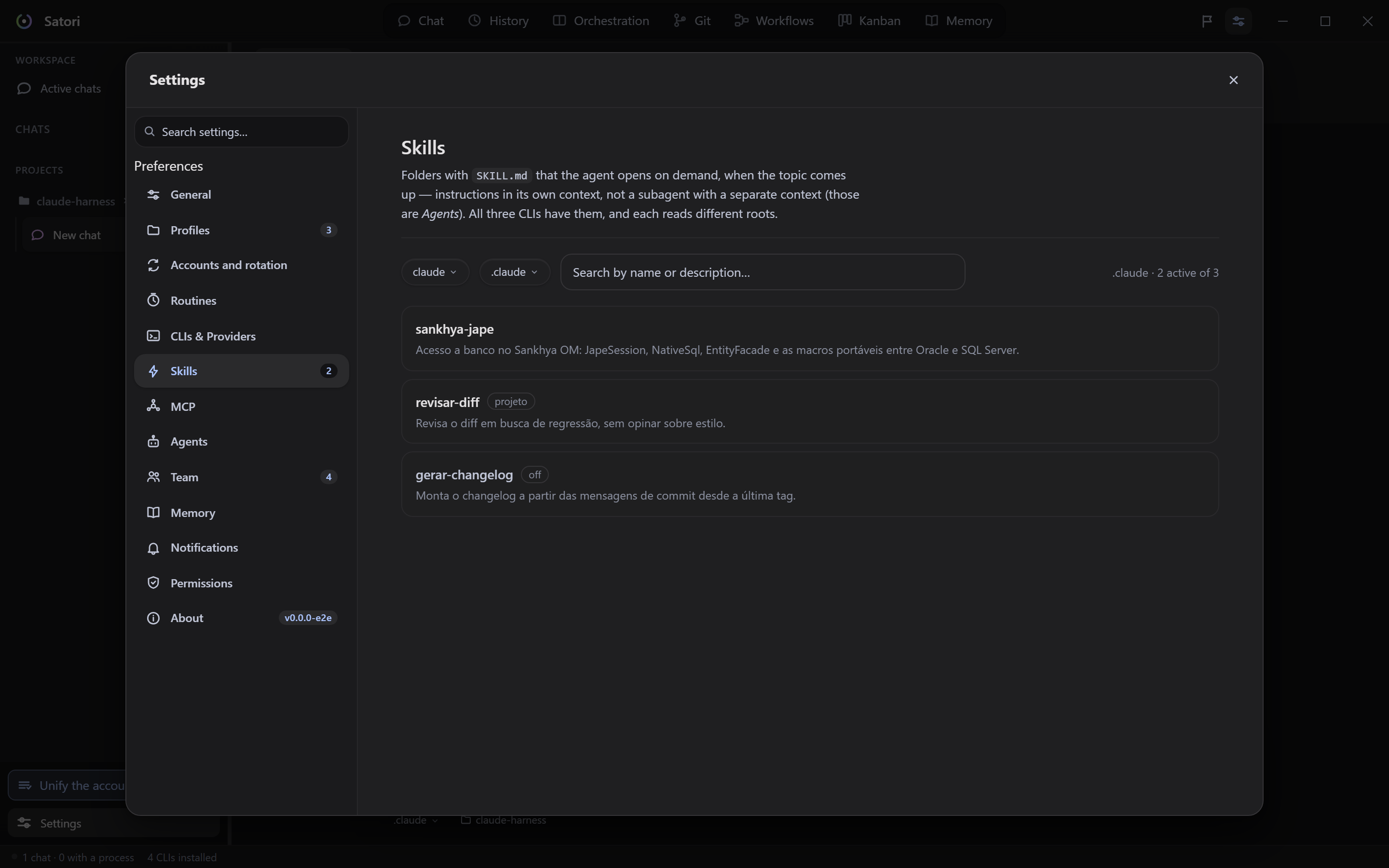
A skill is a folder with SKILL.md that the agent opens on demand, inside
the conversation already in progress. It's different from an agent, which is a subagent
with its own context (see Agents).
All four CLIs have skills, and the chip on the left picks which one you're
looking at. Some folders are read by more than one CLI: ~/.agents/skills/ by
Codex and OpenCode, and ~/.claude/skills/ by Claude Code and OpenCode. In
Antigravity the list is the two profile folders its server reads:
config/skills/ (the Antigravity app's and IDE's) and antigravity-cli/skills/
(the agy terminal one). Plugin skills and the ones that ship with the app don't reach the
agent in Satori, and so they don't appear. The
same skill in two panels is the same file on disk, and the folder written on the
row is what tells you that.
Turning one off works differently in each CLI:
| CLI | What the toggle does |
|---|---|
| Claude Code | moves the folder to <profile>/skills-desativadas/, since Claude Code has no "disabled skill" |
| Codex | moves the folder to the skills-desativadas/ next to the source folder. When that folder is shared with another CLI, the row warns you before the click |
| OpenCode | writes permission.skill: {"<name>": "deny"} to its configuration, without touching another CLI's files |
| Antigravity | moves the folder to the skills-desativadas/ next to the source folder, as in Codex. Both folders are also read by the app and by agy, and the row warns you before the click that turning it off applies there too |
In Claude Code, Codex and Antigravity it's reversible and visible on disk: you can undo it by hand, without Satori. In OpenCode the skill still shows in the list even when denied, with the state next to it.
Plugin skills and the ones that ship with the CLI appear marked and without a toggle: they're reinstalled on every update, so turning them off from here wouldn't last.
A folder without a readable SKILL.md appears marked no SKILL.md instead of vanishing from the
list.
The change applies to the CLI's next session. A session already open in the terminal keeps what it loaded when it started.
Agents
An agent is a subagent: the main agent calls it through Task, it
works with its own context, tools and model, and returns only the report.
(A skill, by contrast, is read inside the conversation already in progress.)
It lists the profile's subagents with name, description, model and how many tools
each one can use (hover over the label to see which). The chip on the left
picks the CLI: Claude Code (<profile>/agents/*.md) or Codex, where each
agent is two files, .md and .toml. Creating an agent from the screen only exists in
Claude. Antigravity doesn't appear here: the server Satori uses doesn't
load agents from files (the app and agy in the terminal do), so a list
for it would promise subagents the agent never sees.
View opens the file's content, which is sometimes too big for the list.
The toggle turns it on and off just like the skills one, and for the same reason: there's
no "disabled agent" in the CLIs. Turning it off moves the file to
<profile>/agents-desativados/, and turning it on brings it back. In Codex, each
agent's two files (.md and .toml) move together.
Agents that come from plugins don't appear here, because they don't live in the profile's
agents/folder. That's why this screen's count may be lower than the one you see in the CLI.
MCP
The chip on the left picks the CLI: Claude Code, Codex or Antigravity. It lists the profile's MCP servers: name, transport, command and the names of the environment variables it uses. Values aren't shown, because they're usually secrets.
Test connections (in Claude Code) runs the CLI's health check and marks each server as connected or failed. It takes a few seconds.
Adding a server
+ Server opens the form:
| Field | What goes in it |
|---|---|
| Name | letters, numbers, ., _, - |
| Transport | stdio (local process), http or sse |
| Command / URL | npx -y @scope/package for stdio; the URL for the others. A path with spaces goes in quotes |
| Variables / Headers | one per line: KEY=value for stdio, Name: value for the others. Optional |
Codex accepts less: only stdio and http, without free-form headers. In their
place goes the name of an environment variable with the token, never the value. It
also has no connection test, so the Test connections button goes away; a server
turned off in config.toml appears with the off label.
In Claude Code and Codex, Satori adds it through the CLI's own subcommand
(claude mcp add --scope user or codex mcp add) and never writes straight to the configuration file, which the
CLI rewrites while it runs. If the CLI refuses, the error appears inside the
form and nothing is added; the window only closes when it worked.
In Antigravity, Satori writes the profile's config/mcp_config.json,
because there's no command that does it. It touches only the server's entry, and the
first write leaves a mcp_config.json.satori.bak copy next to it. If the
file is unreadable, Satori refuses instead of overwriting. It accepts stdio
and http (with headers); sse doesn't appear because the same URL serves both.
Three differences from Google's documentation, all measured:
- the HTTP server is saved as
url: theserverUrlthe documentation teaches is ignored by the server Satori uses, and an old entry like that appears with a warning; - there's no "turn off":
disabled: trueis ignored too, and a server marked that way appears with the warning that it starts anyway. To keep it from running, remove it; - the
mcp_config.jsonin the project folder (.agents/) isn't read.
There's also no Test connections: Antigravity only connects to the servers when the chat sends its first message.
Removing
Each row's Remove button asks for confirmation: the first click changes the label to Confirm, and only the second one removes. If you don't confirm within 4 seconds it goes back to normal.
Removal only works for the profile's servers (user scope), which are
exactly the ones this screen lists. A server inherited from a project or coming from
Claude.ai can't be removed here.
The profile picker on these screens
Skills, Agents, MCP and History have a profile chip next to the CLI chip. There's one per CLI (Claude's profile is no good for reading Codex), and the screen's CLI decides which one shows.
It starts on the active chat's profile when the chat is from the same CLI, and doesn't touch the chat: looking at the other profile's skills shouldn't change where the agent is working.
Settings
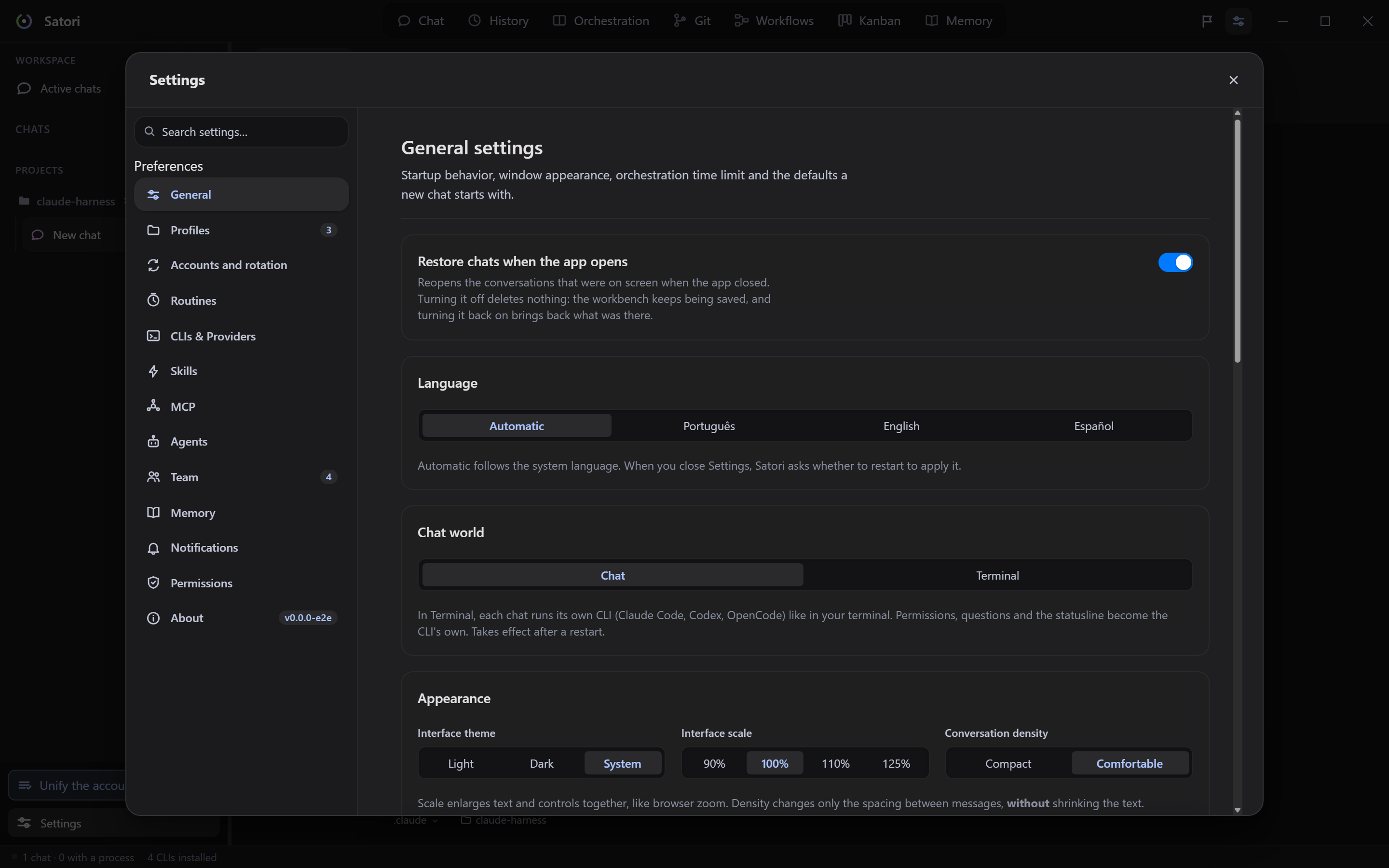
The gear on the top bar opens a modal with thirteen tabs. The conversation stays visible behind it, and Esc takes you back to the screen you were on. The search at the top looks through every tab at once.
| Tab | What it decides |
|---|---|
| General | restore chats on open, appearance (theme, scale, density), time limit per CLI in orchestration, and the defaults a new chat starts with |
| Profiles | list, create and sign in, add a profile from another folder, hide, remove and delete from disk. ~\.gemini has no Delete from disk: it also holds the Antigravity app and the Gemini CLI |
| Accounts and rotation | each AI's accounts, how the chat picks the account and when it switches on its own (see Accounts and rotation) |
| Routines | the scheduled agents of your claude.ai account (see Routines) |
| CLIs & Providers | each CLI's executable (when detection can't find it), and login for Codex, OpenCode and Antigravity |
| Skills · MCP · Agents | the lists described above |
| Team | creates, edits, and turns on and off the roles a chat or a workflow step can take on (see Team) |
| Memory | turns project memory on, picks which CLI, account and model consolidate the segments, and how long the raw text stays (see Memory) |
| Notifications | what each event does when it happens: notification, sound and flashing icon, plus notifying even when the window is focused and the test button (see System notifications) |
| Permissions | the "always allow" rules already granted, per profile + project, with the revoke button |
| About | version, check for updates, the Satori website, What's new in each version and open the data folder, and the backup: Export… saves the Kanban, Memory, open chats, Workflows, Team, runs, permissions and preferences to a .satori file; Restore… shows what the file holds and, once confirmed, replaces this machine's and restarts Satori (the previous state is kept as a copy in the data folder). Accounts, license and the CLIs' conversation history are not included: on the new machine, each account signs in again. Projects find themselves by the folder name |
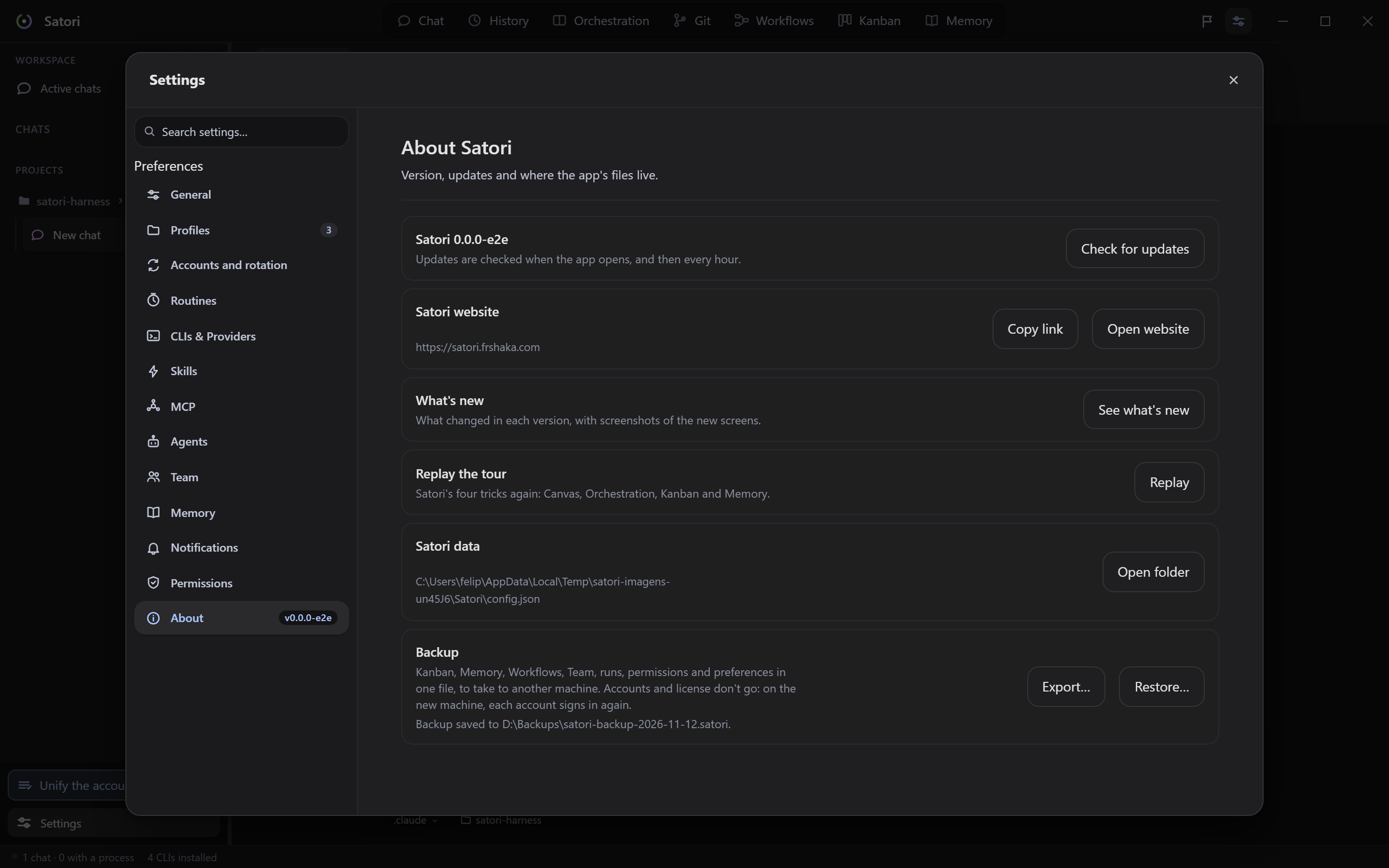
What's new opens the list of published versions, with what changed in each one and screenshots of the new screens. After an update, the ✦ What's new notice lights up once at the bottom of the sidebar and takes you to the version that just arrived. Click a screenshot to see it large; click it again to see it at actual size, with scrolling, and click outside it to close.
The CLIs & Providers tab also has the Install button for any missing CLI, the same as in the first-run tour.
Scale works like browser zoom: it enlarges text and controls together. Density changes only the spacing between messages, without shrinking the text.
A new chat inherits from the open chat by default (account, CLI, mode and model).
Turn off Copy from the open chat so every chat starts the same, with the defaults
set on the same tab. The folder is never inherited: it comes from the defaults'
Working folder, or from the project group's + (see
Several chats at once).
Accounts and rotation
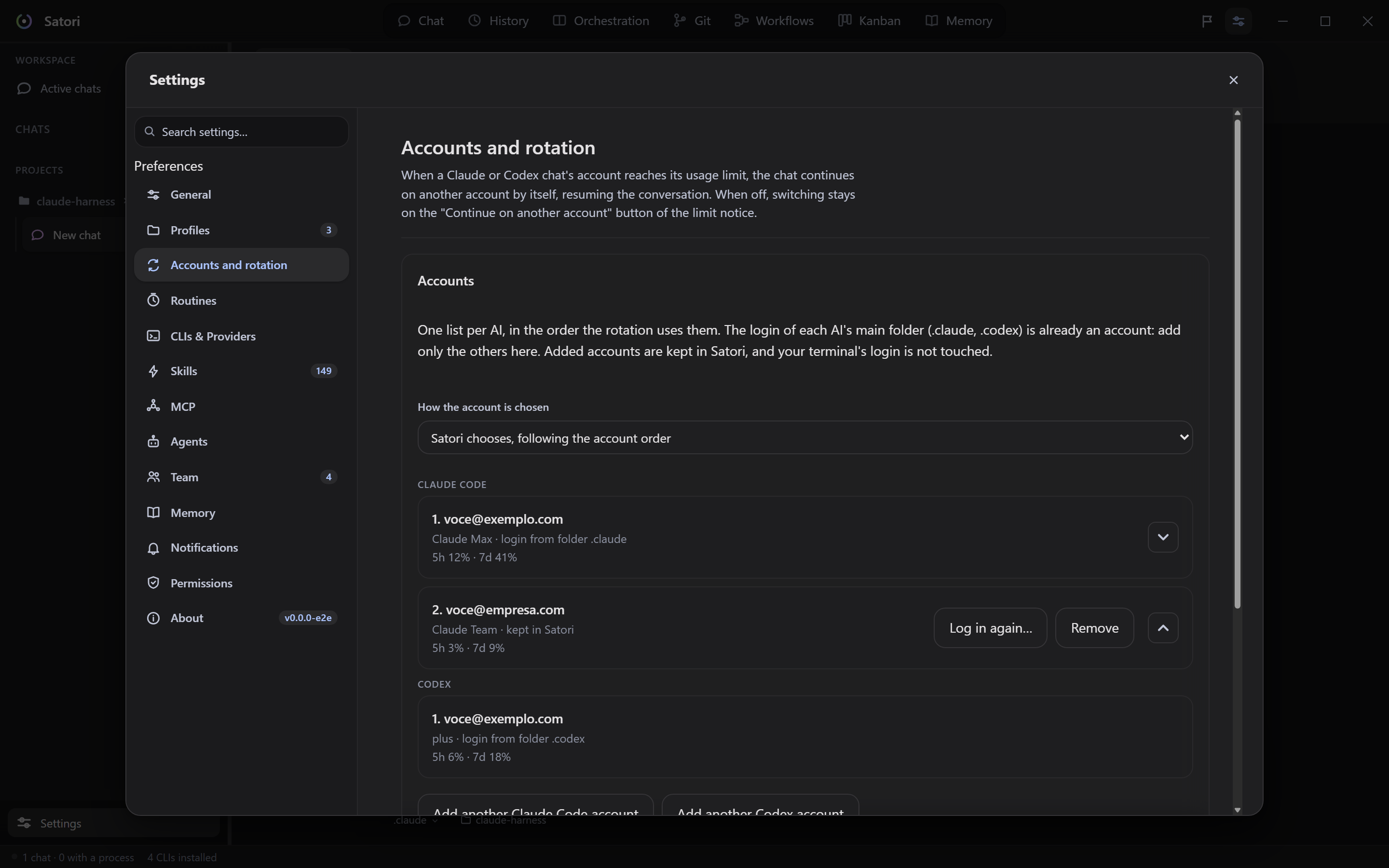
If you have more than one account of an AI (two Claude subscriptions, for example), Satori can pick the account for each chat and switch it when the usage limit arrives. It all lives in Settings › Accounts and rotation, and applies to Claude Code and Codex; in OpenCode and Antigravity each profile has a single account.
How the account is chosen has two modes:
| Mode | How it works |
|---|---|
| Satori chooses, following the account order (Accounts mode) | each AI uses only its main folder (.claude, .codex) as configuration. The chat chip picks only the AI, and the account comes from the order below on the first send: the first one that still has room. The account in use shows in the chip's tooltip and in the status line's account widget, which is added on its own when you turn the mode on |
| I choose, through the profile in the chat chip (Profiles mode) | as it always was: each profile is a configuration with its own account, and the chip picks the profile |
With one account per AI you enter Accounts mode on your own and notice no difference. With more than one profile of the same AI you stay in Profiles mode and see the Unify the accounts notice at the bottom of the sidebar (below).
The account list is one per AI, in the order the rotation uses them. Each line shows the e-mail, the plan, where the account comes from and the use of the 5 h and 7-day windows:
- login from folder .claude (or
.codex): the login the CLI already has in the main folder. It already is an account, and your terminal keeps using it; - kept in Satori: an account added here. It lives in
%APPDATA%\Satori\contas, with its own login done by the CLI, and your terminal's login is not touched.
Add another Claude Code account (or Codex) creates the account's folder and opens the CLI's login in the browser. Once the login is done, the account shows up in the list on its own. The arrows change the order; Remove deletes only the account kept in Satori, and asks for a second click. The same account added twice (the same e-mail) gets the same account as … notice and stays out of the rotation: remove the duplicate.
Unify the accounts
For those who used one profile per account (.claude and .claude-trabalho, for
example). The Unify the accounts card lists each extra profile with the
Log this account into Satori button: log in with the same account as that
profile. When the e-mail matches, the profile's conversations are copied to the
main folder, so they stay in History and can be resumed, and the
line says how many. Then click Use Accounts mode.
Nothing is deleted: the old profile stays whole, and so does the terminal that uses it. The login is a new one, and not a copy of the credential, on purpose: the credential rotates on every renewal, and two copies of it would knock each other out. To keep things as they are, Keep the profiles ends the invitation.
When the limit arrives
When a chat's account hits the usage limit, the error balloon brings Continue on another account: the other accounts of the same AI, with the use of each one. Picking one reopens the chat on it, resuming the same conversation, and sends "continue where you left off". In Claude the conversation stays in the same folder; in Codex it is copied to the other account's folder.
Switching accounts restarts the chat's process. Whatever runs in the
background in that chat (an npm run dev, for example) is stopped, and the balloon says
what will stop before you confirm.
With no other account of the same AI, the balloon offers Continue in another AI: pick one of the AIs that have an account on this machine and a new chat opens in it, in the same folder and with the same title, with the conversation so far going along with the first message. The field comes with Continue from where you stopped. and nothing is sent on its own; the old chat stays as it is. Only the conversation text goes, not attachments or images.
The automatic rotation does the switch on its own. It comes off:
| Option | What it does |
|---|---|
| When to switch | Off (button only); At the usage limit, which switches when the limit arrives and continues the turn; Before the limit, by threshold, which switches between one turn and the next when the fullest window passes Switch at |
| Warn at | from how much of the window on the chat warns that the account is filling up |
| Switch at | the threshold of the Before the limit mode |
| With a background task | Ask, Switch anyway or Wait for the reset |
| Reserve account | only comes in when no other has room |
Routines
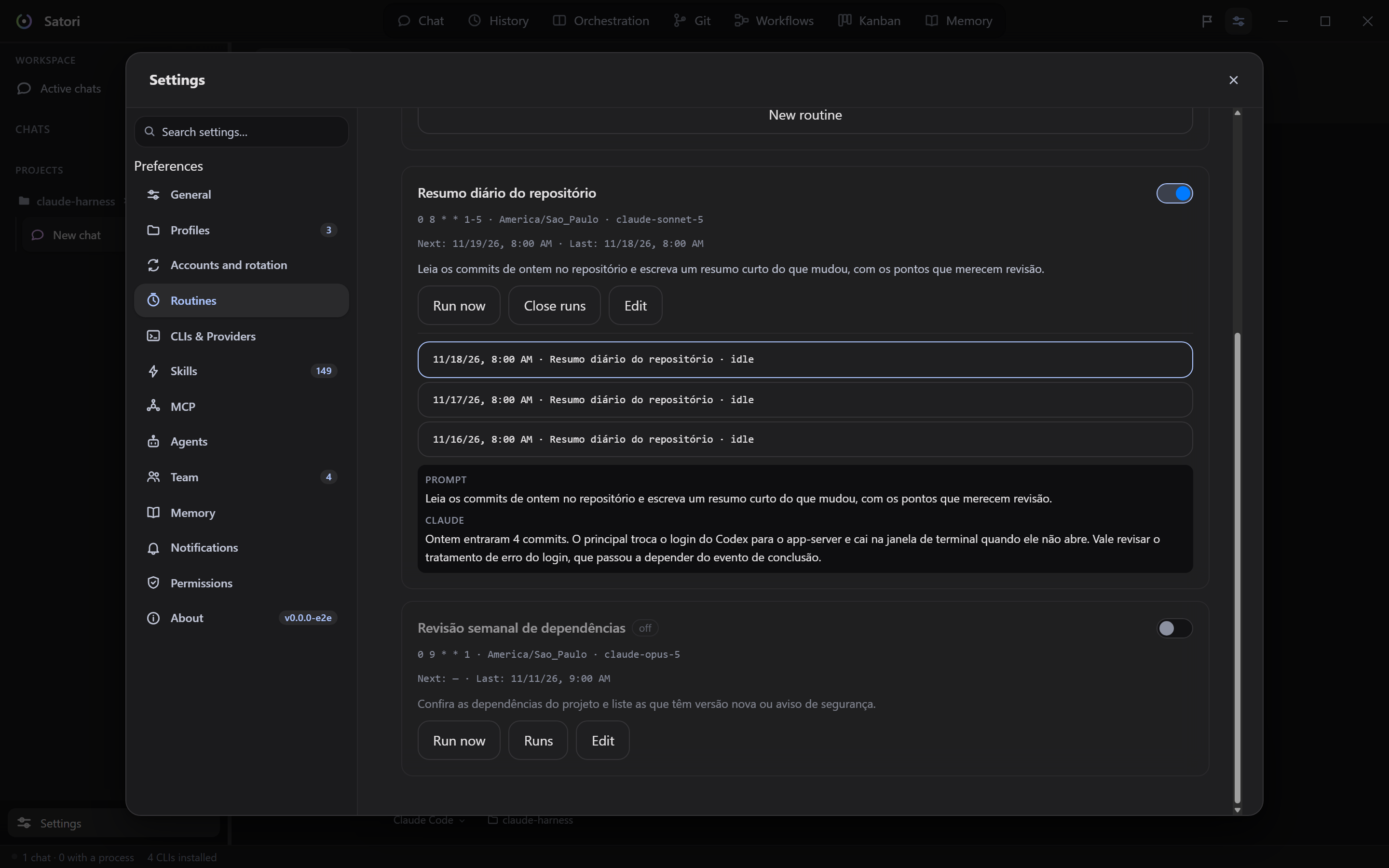
Routines are scheduled agents of your claude.ai account, created there or
with /schedule in a Claude Code chat. They run in the cloud, even with Satori
and the computer off. In Settings › Routines, pick the account and
see each routine with its schedule, model and the next and last run:
| Gesture | What it does |
|---|---|
| toggle | turns the routine on and off |
| Run now | runs it right away. Asks for a second click (Confirm: runs and uses quota) |
| Runs | the latest runs; clicking one shows its conversation |
| Edit | changes the name, the schedule (5-field cron) and the time zone |
| New routine · Change prompt or model in a chat | open a Claude Code chat on that account with /schedule already in the field, without sending: you complete the request and send it |
Creating a routine and changing the prompt go through /schedule because the routine keeps
more than the text (environment, repository, tools), and only the official flow
knows how to build it without breaking it. There is no delete here: claude.ai doesn't offer
that operation outside the website. The list is reread every time you open the tab,
because the routine may have changed on claude.ai.
Orchestration
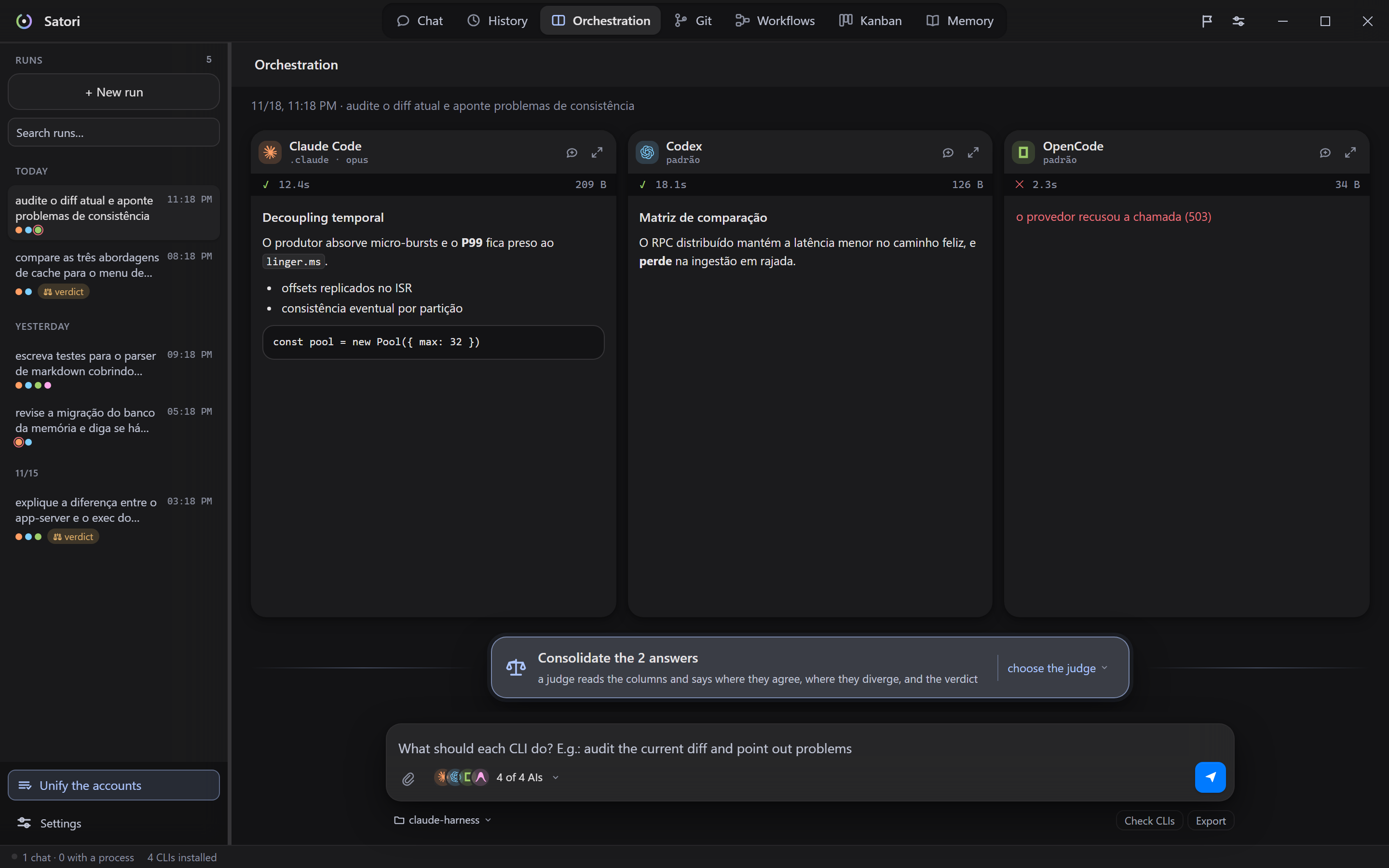
Sends the same request to several CLIs at once and shows the answers side by side. It's for cross-auditing: ask Codex to review what Claude did, and vice versa.
- Write the request (e.g. "audit the current diff and point out problems")
- Choose the AIs in the composer chip ("3 of 3 AIs"); all come selected. It opens a list with one row per AI: click the row to turn it on or off, and its chips to change the model and the effort
- Click the plane (or Enter) to launch. During the run it becomes a square, which stops everything
Each CLI becomes a column with a progress indicator while it runs, ✓ or ✕ at the end, and the time it took. Each one is an independent process, with its own account and context: the second opinion doesn't share the first one's bias.
Supported CLIs: Claude Code, Codex, OpenCode and Antigravity; the installed ones show up in the list. Antigravity isn't part of Git's Generate message. A CLI that fails (an account without access, for example) shows the error in its column instead of disappearing.
The run's folder
The folder chip, on the line below the composer, says where runs execute. There are two options: Choose folder…, which pins one until you change it, and Follow the active chat, where the chip gets a dashed border because the folder changes along with the conversation. With no folder at all, the first launch asks for one.
The CLIs run without guardrails in orchestration. They read and write files in the run's folder, run commands and reach the web without asking for permission, because there's no way to answer a permission request in a run. Check the folder chip before launching a request that touches files.
Time limit
⏱ is different from ✕. Each CLI has a time limit, and whoever goes over it is
stopped: the column turns yellow, says unfinished next to the time, and the
body starts by explaining after how many minutes it stopped, with what it had produced
up to then right below. It's not a CLI failure; it's time that didn't fit.
The default limit is 15 minutes and lives in Settings › General. Zero
turns the clock off: then each column's stop button decides when to
stop.
Consolidate and continue
Consolidate sends everyone's answers to one CLI to judge, and returns where they agree, where they diverge and the verdict. It appears as a card between the columns and the composer when the run ends with two or more good answers (with only one there's nothing to compare). Click it and choose the judge: choosing is what launches it, because it spends a turn of the chosen account. The verdict is saved with the run (reopening it brings the judgment back, without paying again) and Export puts it at the end of the file.
open chat takes a column's answer to a chat with that same CLI, in the run's folder, with the request and the answer already on screen. The verdict has the same button, and there it opens the chat with the CLI that judged.
The chat continues the SAME conversation as the run, in all four CLIs: it resumes the session the column created, and the agent remembers the request and the answer as if you'd been talking to it from the start.
When that's not possible (the CLI didn't leave the identifier, or you changed the account or folder after the run), the request and the answer go into your first send in that chat, and the CLI answers already knowing the subject.
In that case, very long texts are cut, and the cut is written in the request: Windows limits the size of command-line arguments.
Secrets
Known secrets are removed from what Satori keeps and exports: if an
answer brings something like ANTHROPIC_API_KEY=…, Authorization: Bearer … or
a key in the sk-…/ghp_… format, it shows as [redigido] in the column, in the
exported file and in what goes to the Consolidate judge.
This protects what LEAVES Satori, not the conversation. The agent read the file, and the text is in the CLI's own history. A secret that reached the agent is still exposed: rotate the key.
Runs and export
Runs are saved. The Orchestration sidebar lists the last twenty, grouped by day (Today, Yesterday, the date). Each line shows the request, the time, a dot in each AI's color (with a red ring on the one that failed) and the ⚖ badge when there was a verdict. Click one and the columns come back as they were, with each CLI's account and time from that run, and the request above them.
| In the sidebar | What it does |
|---|---|
| New run | clears the columns, the request and the verdict, empties the field and focuses it |
| Search runs… | filters by the request text |
| × (on hover) | deletes the run. Asks for a second click (Delete?) |
| right-click › Delete run | the same, straight from the menu |
Deleting the run on screen clears the screen too. While a run or a judge is running, the list and New run are locked until it ends, so the answers still on their way don't lose their column.
It is the same sidebar as the Chat: Ctrl+B or the collapse button shrink it to a narrow strip, and the columns get the width. Collapsed, each run becomes a small column of dots with the time (the request shows on hover), and the magnifier reopens the sidebar with the focus on the search. Collapsing applies to the Chat too.
Export saves the whole comparison to a .md: the request and what each CLI
answered, in column order. It works for the run that just finished and for
a reopened one. Each column's save saves just one answer. The button only
appears once the run is finished.
Check CLIs
The Check CLIs button shows, for each one, the installed version and the account status:
| Dot | What it means |
|---|---|
| green | authenticated, ready to launch |
| yellow | expired credential, or a state the CLI couldn't report |
| red | no account configured, or the login command failed |
| gray | the CLI isn't installed on this machine |
It uses nothing: no turn, no token. Codex answers through codex login status, OpenCode through opencode auth list, and Claude Code through the profile's
credential file.
That's why the profile matters: Claude Code's account is per profile, and the picker at the top of the screen decides which one is being checked. Switching profile and checking again can give different answers, because they're different accounts.
No token goes anywhere, not to the screen, not to the log.
System notifications
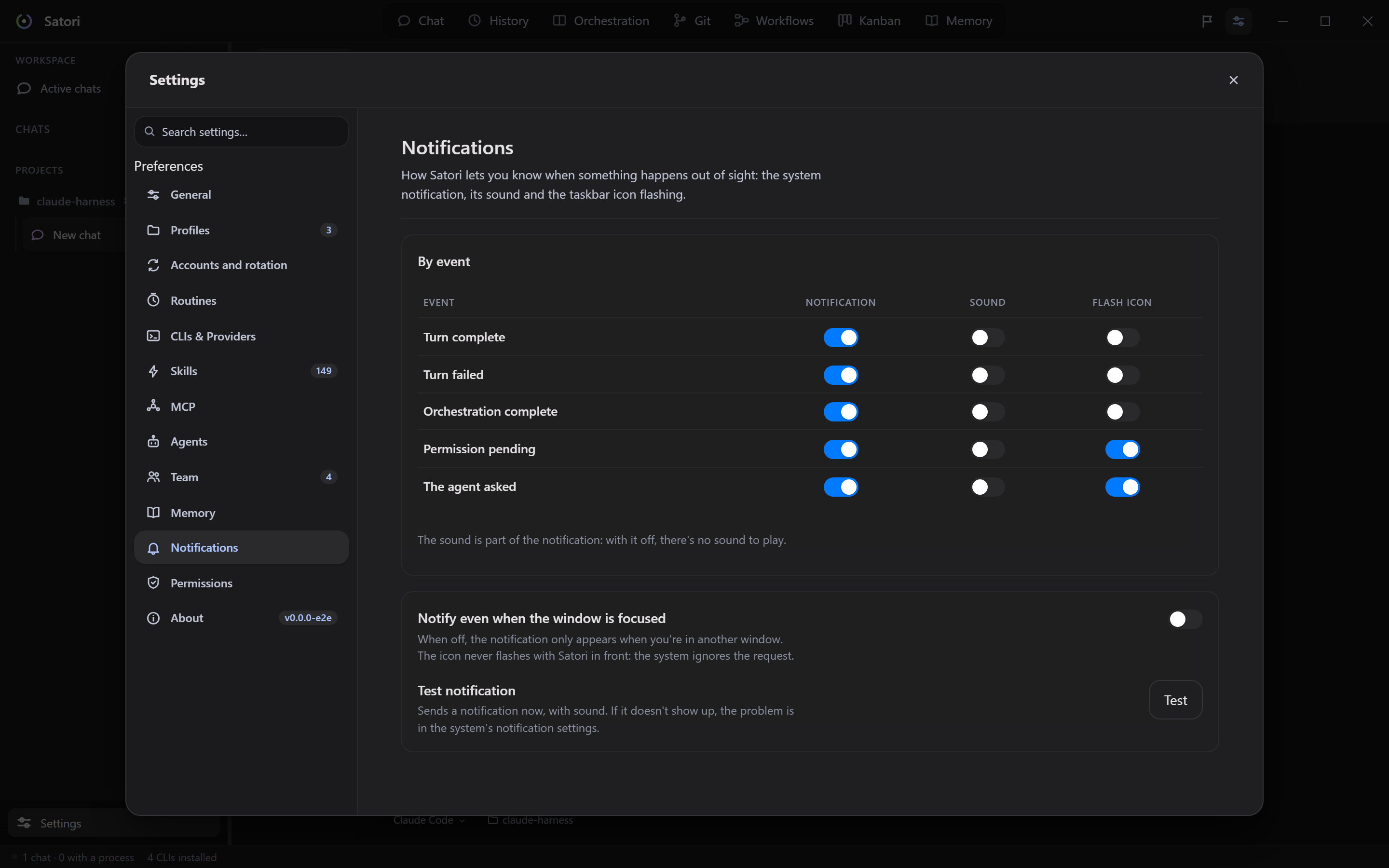
A long turn ends, a permission is left waiting, an orchestration finishes: Satori lets you know. Settings › Notifications decides how, in a grid with one event per row and one way of notifying per column, and each cell turns on and off on its own:
| Event | Notification | Sound | Flash icon |
|---|---|---|---|
| Turn complete | ✅ | — | — |
| Turn failed | ✅ | — | — |
| Orchestration complete | ✅ | — | — |
| Permission pending | ✅ | — | ✅ |
| The agent asked | ✅ | — | ✅ |
The table shows how Satori comes out of the box. Turn failed is separate from complete: you can tell from afar that a turn died from an error, and not because it finished.
The sound is part of the notification. With the notification off for that event, the sound is grayed out: on Windows it plays along with the system notification, and with no notification there's nothing to play.
Flash icon makes Satori flash in the Windows taskbar until you come back to the window; on Linux it gets highlighted in the dock (exactly how depends on the desktop: GNOME and KDE usually highlight it).
By default, with the window focused no notification appears: whoever is already looking at the screen doesn't need it, and too many notifications train anyone to ignore the one that matters. Notify even when the window is focused changes that. The icon never flashes with Satori in front: the system ignores the request.
Test notification sends a notification right away, with sound. If it doesn't show up, the problem is in the system's notification settings, not in Satori.
Updates
When it opens, Satori checks whether there's a new version. If there is, a window appears with the current version, the new one and what changed, and two options. Nothing is downloaded before you say so.
- Update and restart: the app downloads the installer, installs it and comes back on its own. The progress shows in the window itself; it takes some time, and a still window isn't a freeze.
- Not now: closes and changes nothing. The sidebar notice stays lit, and the question comes back next time you open the app.
With the app open, it checks again every hour. Then it doesn't open any window over what you're doing: it lights up the new version notice at the bottom of the sidebar, and clicking it opens the same window.
Rarely, a version gets too old to keep working. Then the window requires the update: Not now disappears and Esc doesn't close it.
To check for a new version without reopening the app, use Settings › About › Check for updates.
If you're offline, or GitHub is down, the app opens normally and says nothing.
The package is signed, and the app rejects any update whose signature doesn't match. An installer swapped along the way doesn't run.
All published versions are at github.com/Satori-Harness/satori-releases/releases.
Shortcuts
| Shortcut | Action |
|---|---|
| Ctrl+N | new chat |
| Ctrl+B | collapse/expand the sidebar |
| Alt+↑ / Alt+↓ | go to the previous / next chat in the list |
| Ctrl+PageUp / Ctrl+PageDown | go to the previous / next tab in the header |
| Enter | send (or queue, if a turn is running) |
| ↑ / ↓ in the message field | bring back the messages you've already sent in this chat, as in the CLIs; ↓ past the most recent one brings back what you were typing |
| Shift+Enter | break the line in the field |
| Ctrl+V | paste an image or file into the field |
| / at the start of the field | commands and skills menu (Claude Code and OpenCode): ↑↓, Enter or Tab, Esc |
| @ at the start of a word | menu of the project's files and folders: Enter chooses, Tab enters the folder, Esc closes |
| Esc | close the open menu; in the permission modal, deny |
| 1–4 | pick the mode, with the mode menu open |
| Esc on the agent's question | skip without answering |
| Ctrl+R | reload the interface |
| double-click the divider | default sidebar width |
| double-click the title | rename the chat |
| right-click a chat in the list | menu with Rename and the Team roles |
| click the project name | collapse/expand the chat group |
| Esc in the chat filter | clear and close the filter |
When something goes wrong
"Claude Code is not installed" when it is
Detection looks for claude on the PATH. If it was installed in a folder outside
it, point to the executable in Settings › CLIs & Providers › Browse….
The same goes for Codex and OpenCode.
A CLI shows up without an account
Use Check CLIs in Orchestration or Check accounts in Settings › CLIs & Providers. A red dot means no login: sign in with the Log in… button on the same tab (or, for Claude Code, through the profile in Settings › Profiles).
Reporting the problem
Click the flag on the top bar, or Report this problem in the red bubble of a failure in the chat (there the field comes with the error already written). Tell what happened and click Send.
Included are the Satori version, the system, which CLIs are installed and the recent
error log; See what will be sent shows everything first. The log keeps
nothing from your conversations — no message, no answer, no email — and your
user folder appears as ~. Nothing is sent without your click.
Offline, the text stays in the field and the button becomes Try again. The limit is a few reports per day per machine.
The agent says it doesn't have access to the tools
Sometimes the agent can't find a file and concludes it doesn't have the disk tools, which is false. Check the tool lines: they show what it really called and what it got back. Repeating the request mentioning the folder usually solves it.
"account usage limit reached"
It's the usage limit of that chat's account. The balloon brings Continue on another account (see Accounts and rotation), and with the rotation on the switch happens on its own. Without another account, wait for the 5 h window to roll over.
"this conversation's working folder no longer exists"
You resumed a conversation from History whose folder has been deleted or moved since. Open a new chat in the right folder; the old conversation stays readable and exportable in History.
An OpenCode error with a number instead of an explanation
OpenCode provider failures (for example 503 … Endpoint is unavailable)
appear with the text it reported itself. A 503 is temporary unavailability
on their side: trying again usually solves it. If only
code 1 appears, with no text, the CLI said nothing; run the same request from the terminal
to see the full output.
A file card didn't appear
Three common causes: the file was already in the requested state and nothing changed; the
change was made with Bash instead of Write/Edit; or the file is binary.
A hook from my profile blocked something
That's what it's for: the guards in your settings.json apply in here. The
conversation shows which command decided and why; the full text appears when you
hover over the bubble.
If a hook fails (a typo in the path, a script that doesn't exist), Satori tells you and continues instead of locking up.
SessionStart hooks run too, and who triggers them depends on the provider:
- in a Claude chat it's Claude Code itself, as in the terminal: it reads your
settings.json, runs the hooks when the session opens and puts what they print into the context. That's how memory and work-mode hooks keep working here. The conversation only mentions a hook that rejected or failed; - in a Codex or OpenCode chat it's Satori, on the first turn, before the agent sees your question. The effects apply (a hook that saves memory saves just the same), but what it prints does not go into the conversation. On the first send the chat says how many profile hooks apply there and which are left out.
One exception: FileChanged hooks don't run in Satori.
The window opens and nothing responds
The app logs the reason in:
%LOCALAPPDATA%\dev.satori\logs\satori.log
The last line usually says exactly what was missing. Ctrl+R reloads the interface without closing the app.